
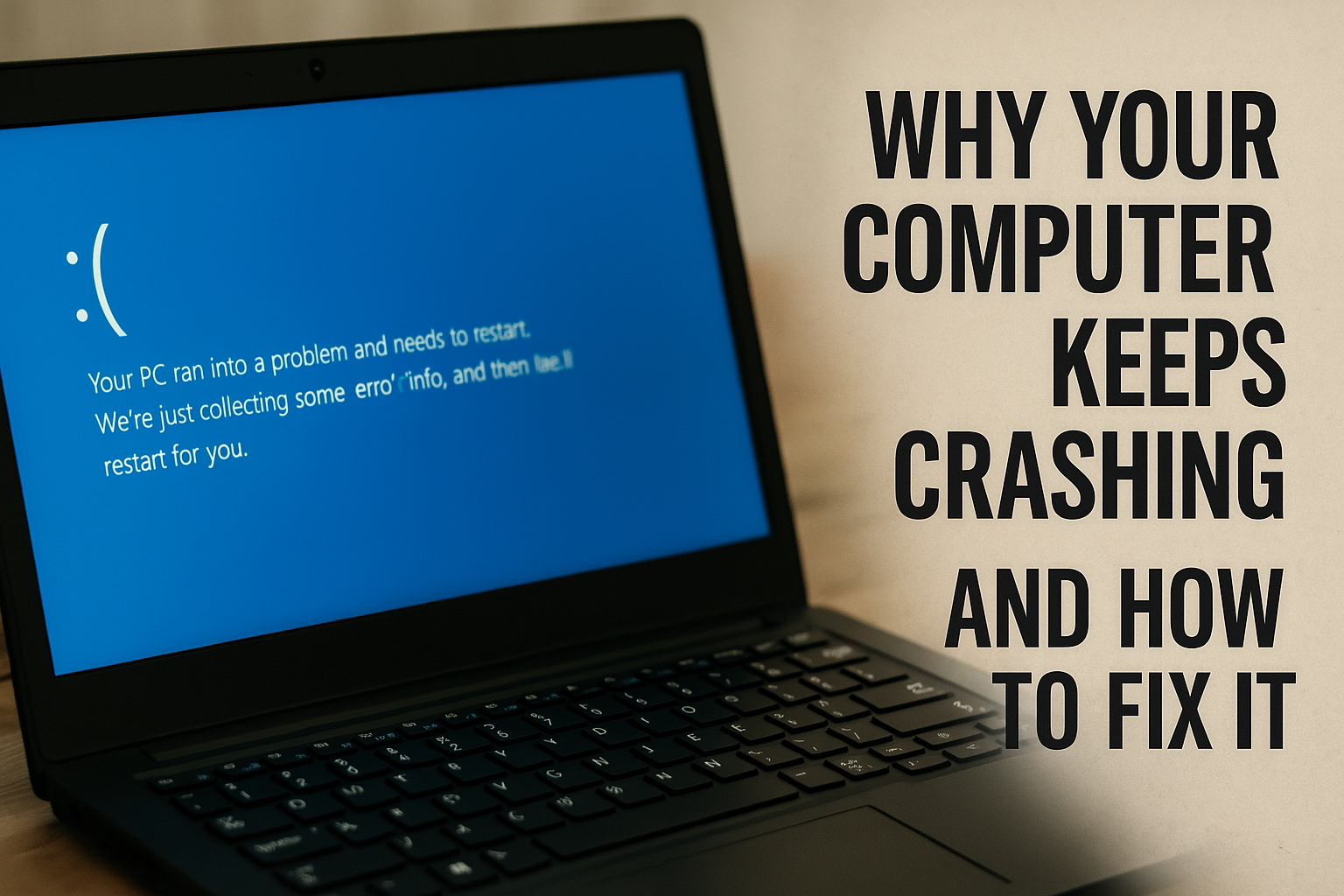
💻 The Ultimate Guide
Computer crashes are one of the most frustrating experiences any user can face. Whether you’re in the middle of an important presentation, gaming session, or just browsing the web, sudden crashes can leave you feeling helpless and worried about potential data loss. If you’re constantly asking yourself “why does my computer keep crashing,” you’re not alone – millions of users worldwide deal with this issue daily.
The good news? Most computer crashes have simple solutions that don’t require expensive repairs or technical expertise. In this comprehensive guide, we’ll explore the most common causes of computer crashes and provide step-by-step solutions to get your system running smoothly again.
🔍 Understanding Computer Crashes: What Actually Happens
Before diving into solutions, it’s crucial to understand what happens when your computer crashes. A crash occurs when your system suddenly stops responding, displays error messages, or restarts unexpectedly. These interruptions happen when your computer’s hardware or software encounters a problem it can’t resolve, forcing it to shut down to prevent further damage.
Common crash symptoms include:
- Blue Screen of Death (BSOD) on Windows
- Kernel panics on Mac
- Complete system freezes
- Random restarts
- Application crashes
- Slow performance followed by crashes
🧠 Memory Problems: The Silent Crash Culprit
RAM Overload Issues
One of the most frequent causes of computer crashes is insufficient RAM (Random Access Memory). When you run too many programs simultaneously, your computer struggles to manage all the active processes, leading to crashes.
Signs of RAM-related crashes:
- System slows down before crashing
- Crashes occur when opening multiple applications
- Error messages about insufficient memory
- Programs suddenly close without warning
Quick Solutions:
- Close unnecessary programs – Use Task Manager (Ctrl+Shift+Esc) to identify memory-heavy applications
- Restart your computer regularly – This clears temporary files and resets memory allocation
- Upgrade your RAM – If you consistently use more than 80% of available memory, consider adding more RAM
- Use lighter alternatives – Replace resource-heavy programs with lighter alternatives
Memory Hardware Failures
Faulty RAM modules can cause random crashes that seem impossible to predict. These crashes often occur during memory-intensive tasks like video editing, gaming, or running multiple applications.
Testing for faulty RAM:
- Run Windows Memory Diagnostic (type “mdsched” in Start menu)
- Use MemTest86 for more comprehensive testing
- Monitor crash patterns during specific activities
🔥 Heat Issues: When Your Computer Gets Too Hot
Overheating is a leading cause of computer crashes, especially during summer months or in poorly ventilated spaces. When internal components exceed safe operating temperatures, your computer automatically shuts down to prevent permanent damage.
Identifying Overheating Problems
Warning signs of overheating:
- Sudden shutdowns during resource-intensive tasks
- Loud fan noise before crashes
- Hot air blowing from vents
- Performance throttling during normal use
- Crashes more frequent in warm environments
Cooling Solutions That Work
Immediate fixes:
- Clean your computer – Dust buildup blocks airflow and traps heat
- Check fan operation – Ensure all fans are spinning properly
- Improve ventilation – Keep vents clear and ensure proper airflow
- Use cooling pads – Laptop cooling pads can reduce temperatures significantly
Long-term solutions:
- Replace thermal paste on CPU (advanced users)
- Upgrade case fans or CPU cooler
- Monitor temperatures using software like HWMonitor
- Adjust power settings to reduce heat generation
⚔️ Software Conflicts: When Programs Fight Each Other
Newly installed software can sometimes conflict with existing programs, drivers, or system files, causing crashes. These conflicts often manifest as crashes that started after installing new software.
Identifying Software Conflicts
Common conflict scenarios:
- Crashes began after installing new software
- Specific programs consistently cause crashes
- System instability after driver updates
- Antivirus software blocking legitimate programs
Resolving Software Conflicts
Safe troubleshooting steps:
- Use System Restore – Roll back to a point before problems started
- Boot in Safe Mode – Test if crashes occur with minimal software running
- Uninstall recent software – Remove programs installed around the time crashes began
- Update or rollback drivers – Driver conflicts are common crash causes
- Check Event Viewer – Windows logs can identify problematic software
🎮 Driver Updates: The Double-Edged Sword
Device drivers are essential software components that allow your operating system to communicate with hardware. However, outdated or corrupted drivers can cause system instability and crashes.
When to Update Drivers
Update drivers when:
- Experiencing crashes with specific hardware
- New hardware isn’t working properly
- Manufacturer releases critical security updates
- Preparing for major OS updates
When to Avoid Driver Updates
Avoid updates when:
- Current drivers work perfectly
- Updates are marked as “beta” or “preview”
- No specific problems exist with current drivers
- Using older hardware with limited support
Safe Driver Management
Best practices for driver updates:
- Create restore points before updating
- Download from official sources only
- Read update notes to understand changes
- Update one driver at a time to identify problem drivers
- Keep backup drivers for critical components
🦠 Virus and Malware: Hidden Crash Causes
Malicious software can cause crashes by consuming system resources, corrupting files, or interfering with normal operations. Modern malware is often designed to remain hidden while causing system instability.
Detecting Malware-Related Crashes
Signs of malware infection:
- Crashes accompanied by slow performance
- Unexpected network activity
- Unknown programs running in background
- Browser redirects or pop-ups
- Antivirus software disabled or blocked
Effective Malware Removal
Free tools that actually work:
- Malwarebytes – Excellent for detecting advanced threats
- Windows Defender – Built-in protection that’s surprisingly effective
- Kaspersky Rescue Disk – Bootable antivirus for severe infections
- AdwCleaner – Specifically targets adware and browser hijackers
- RKill – Stops malware processes before scanning
Removal process:
- Boot into Safe Mode
- Run multiple scanners in sequence
- Check browser extensions and settings
- Review startup programs
- Monitor system after cleaning
💾 Hard Drive Problems: When Storage Fails
Hard drive failures are among the most serious causes of computer crashes because they can result in permanent data loss. Both traditional hard drives (HDDs) and solid-state drives (SSDs) can fail, though they exhibit different warning signs.
Recognizing Hard Drive Failure
Warning signs:
- Crashes during file operations
- Unusual clicking or grinding noises (HDDs)
- Slow boot times and file access
- Frequent “disk not found” errors
- Files becoming corrupted or disappearing
Diagnosing Drive Health
Built-in diagnostic tools:
- Check Disk (chkdsk) – Scans for file system errors
- SMART monitoring – Tracks drive health metrics
- Performance Monitor – Identifies disk bottlenecks
- Event Viewer – Logs disk-related errors
Third-party tools:
- CrystalDiskInfo – Comprehensive drive health monitoring
- HD Tune – Drive performance and error testing
- Victoria – Advanced drive diagnosis and repair
Hard Drive Solutions
For recoverable issues:
- Run disk cleanup to free space
- Defragment HDDs (not SSDs)
- Check and repair file system errors
- Replace SATA cables if loose
- Monitor drive temperatures
For failing drives:
- Back up critical data immediately
- Replace the drive as soon as possible
- Consider professional data recovery for irreplaceable files
- Use multiple backup methods going forward
⚡ Power Issues: Electrical Problems and Solutions
Power-related problems can cause crashes that seem random and difficult to diagnose. These issues range from simple power supply failures to complex electrical problems in your home or office.
Power Supply Unit (PSU) Problems
Signs of PSU failure:
- Crashes during high-power activities (gaming, video editing)
- Random shutdowns without warning
- Failure to power on consistently
- Unusual noises from power supply
- Burning smell or visible damage
Electrical Environment Issues
Common electrical problems:
- Voltage fluctuations from utility company
- Overloaded circuits in older buildings
- Faulty wall outlets or power strips
- Electrical interference from other devices
- Grounding problems
Power Solutions
Immediate fixes:
- Use a quality surge protector – Protects against voltage spikes
- Test different outlets – Isolate outlet-specific problems
- Check power cables – Ensure secure connections
- Monitor power usage – Avoid overloading circuits
- Consider UPS systems – Provides clean, stable power
Long-term solutions:
- Upgrade to higher-wattage PSU if needed
- Have electrical system inspected by professional
- Install dedicated circuits for high-power equipment
- Use power line conditioners for sensitive equipment
🖥️ Windows Errors: Common Messages Explained
Windows displays various error messages during crashes, each providing clues about the underlying problem. Understanding these messages can help you identify and fix crash causes more effectively.
Blue Screen of Death (BSOD) Errors
Common BSOD codes and meanings:
- SYSTEM_THREAD_EXCEPTION_NOT_HANDLED – Usually driver-related
- MEMORY_MANAGEMENT – RAM or memory driver problems
- DRIVER_IRQL_NOT_LESS_OR_EQUAL – Faulty or incompatible drivers
- SYSTEM_SERVICE_EXCEPTION – Windows service conflicts
- CRITICAL_PROCESS_DIED – Essential Windows process failed
Application Crash Errors
Frequent application errors:
- “Application has stopped working” – Program compatibility issues
- “Access violation” – Memory access problems
- “Runtime error” – Programming or system conflicts
- “DLL not found” – Missing or corrupted system files
System Event Errors
Critical system events:
- Kernel-Power errors – Power supply or hardware issues
- Critical system errors – Core Windows component failures
- Service control manager errors – Windows service problems
- Hardware errors – Component-specific failures
🛡️ Backup Before Fixing: Protecting Your Data
Before attempting any crash fixes, it’s essential to protect your important data. System repairs can sometimes cause data loss, making backups your safety net.
What to Back Up
Essential data to protect:
- Personal documents and photos
- Work files and projects
- Email and contacts
- Browser bookmarks and passwords
- Software licenses and registration keys
- System settings and configurations
Backup Methods
Local backup options:
- External hard drives – Fast, reliable, and affordable
- USB flash drives – Convenient for smaller amounts of data
- Network attached storage (NAS) – Automated local backups
- Secondary internal drives – Quick access to backed-up files
Cloud backup services:
- Google Drive, OneDrive, Dropbox for file sync
- Backblaze, Carbonite for full system backups
- Windows File History for version control
- Time Machine for Mac users
Backup Best Practices
Creating effective backups:
- Follow the 3-2-1 rule – 3 copies, 2 different media types, 1 offsite
- Test restore procedures – Verify backups actually work
- Schedule regular backups – Automation prevents data loss
- Document backup locations – Know where everything is stored
- Update backups before repairs – Fresh backups before troubleshooting
🆘 When to Get Professional Help
While many crash issues can be resolved with DIY solutions, some problems require professional expertise. Knowing when to seek help can save time, money, and prevent further damage.
DIY vs Professional Repair
Handle yourself:
- Software conflicts and driver issues
- Virus removal and system cleaning
- Basic hardware cleaning and maintenance
- Memory and storage upgrades
- Power supply replacement (with experience)
Seek professional help for:
- Motherboard or CPU failures
- Liquid damage or physical trauma
- Data recovery from failed drives
- Complex electrical problems
- Warranty-covered repairs
Choosing a Repair Service
What to look for:
- Certified technicians with relevant experience
- Transparent pricing and diagnostic fees
- Good reviews and local reputation
- Data security and privacy policies
- Warranty on repairs and parts
Questions to Ask
Before committing to repairs:
- What’s the diagnostic process and cost?
- How long will repairs take?
- What’s included in the repair warranty?
- Can you provide a cost estimate upfront?
- What happens if the problem can’t be fixed?
🔧 Preventive Maintenance: Avoiding Future Crashes
The best crash fix is prevention. Regular maintenance can prevent many common crash causes and extend your computer’s lifespan.
Monthly Maintenance Tasks
Essential monthly activities:
- Run antivirus scans – Keep malware at bay
- Check for Windows updates – Install security patches
- Clean temporary files – Free up disk space
- Monitor system temperatures – Prevent overheating
- Review startup programs – Remove unnecessary items
Quarterly Maintenance
Deeper system care:
- Physical cleaning of computer internals
- Drive health monitoring and testing
- Software audit and cleanup
- Performance benchmarking
- Backup verification and testing
Annual Maintenance
Comprehensive system care:
- Complete system backup and restore testing
- Hardware component inspection
- Thermal paste replacement (if needed)
- Cable management and organization
- Performance optimization and tuning
📊 Monitoring Your System Health
Ongoing system monitoring helps identify potential crash causes before they become serious problems. Modern tools make it easy to track system health and performance.
Built-in Monitoring Tools
Windows utilities:
- Task Manager – Real-time resource monitoring
- Performance Monitor – Detailed system metrics
- Event Viewer – System logs and error tracking
- Resource Monitor – Comprehensive resource usage
- Reliability Monitor – System stability tracking
Third-Party Monitoring Software
Recommended tools:
- HWMonitor – Temperature and voltage monitoring
- CrystalDiskInfo – Drive health tracking
- CPU-Z – Hardware information and monitoring
- GPU-Z – Graphics card monitoring
- Process Explorer – Advanced process monitoring
Setting Up Alerts
Proactive monitoring:
- Configure temperature alerts for critical components
- Set up disk space warnings
- Monitor memory usage patterns
- Track system performance trends
- Enable automatic error reporting
🎯 Quick Crash Fix Checklist
When your computer crashes, follow this systematic approach to identify and resolve the issue quickly.
Immediate Response (First 5 Minutes)
Step 1: Gather Information
- Note what you were doing when the crash occurred
- Record any error messages or codes
- Check if the crash is reproducible
- Document the time and frequency of crashes
Step 2: Basic Troubleshooting
- Restart your computer and test stability
- Check for recent software installations
- Verify all cables are securely connected
- Listen for unusual hardware noises
Short-term Solutions (Next 30 Minutes)
Step 3: Software Checks
- Run Windows Memory Diagnostic
- Scan for malware using multiple tools
- Check Windows Update for available patches
- Review recent driver installations
Step 4: Hardware Verification
- Monitor system temperatures
- Test with minimal hardware configuration
- Check power supply connections
- Verify RAM seating and connections
Long-term Resolution (Next Few Hours)
Step 5: Deep Diagnosis
- Analyze Windows Event Viewer logs
- Run comprehensive hardware tests
- Check drive health and file system integrity
- Review system stability over time
Step 6: Implementation
- Apply identified fixes systematically
- Test each solution thoroughly
- Document what worked for future reference
- Set up monitoring to prevent recurrence
🌟 Conclusion: Taking Control of Computer Crashes
Computer crashes don’t have to be a source of constant frustration. By understanding the common causes and implementing the solutions outlined in this guide, you can resolve most crash issues yourself and prevent many from occurring in the first place.
Remember that computer troubleshooting is often a process of elimination. Start with the simplest solutions and work your way up to more complex fixes. Most importantly, always back up your important data before attempting any repairs.
The key to successful crash resolution is patience, systematic troubleshooting, and knowing when to seek professional help. With the knowledge and tools provided in this guide, you’re well-equipped to tackle most computer crash issues and keep your system running smoothly.
Whether you’re dealing with memory problems, overheating issues, software conflicts, or hardware failures, the solutions are within your reach. Take control of your computer’s stability today, and enjoy a more reliable computing experience tomorrow.
Remember: If you’re uncomfortable performing any of these solutions, don’t hesitate to seek professional help. Your data and system safety are worth the investment in expert assistance.