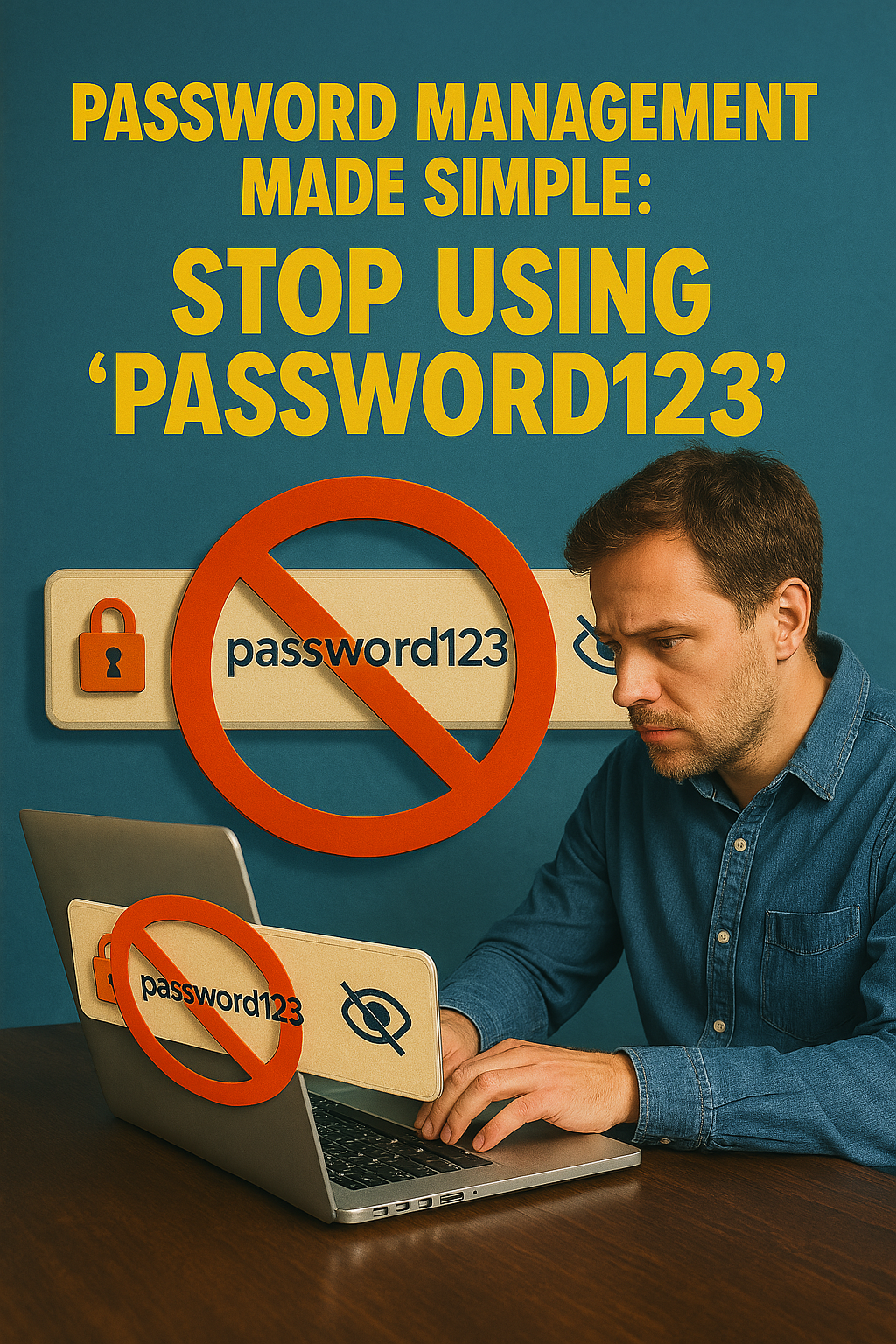
Stop Using ‘password123’ 🔐
If you’re still using “password123” or your birthday as your password, this article could literally save your digital life. Password security isn’t just for tech experts anymore—it’s become essential for everyone who uses the internet, from teenagers to grandparents.
Why Your Current Password Strategy Is Putting You at Risk 🚨
The Shocking Reality of Password Breaches
Every 39 seconds, a hacker attacks someone online. That’s not a dramatic statistic—it’s reality. In 2024 alone, over 4.1 billion records were compromised due to weak password security. The most common passwords people still use include:
- password123 🤦♂️
- 123456789
- qwerty
- admin
- letmein
If your password is on this list, you’re essentially leaving your digital front door wide open.
Real-World Examples That Will Make You Change Your Password Tonight
Sarah’s Story: A marketing professional from Denver used “Sarah2024!” across multiple accounts. When her email got hacked, criminals accessed her bank account, social media, and even her work systems. The damage? $8,000 stolen, damaged professional reputation, and months of recovery time.
Mike’s Business Nightmare: A small business owner used “company123” for his business accounts. Hackers gained access to customer data, leading to a $50,000 fine and nearly shutting down his 15-year-old business.
These aren’t isolated incidents—they happen thousands of times daily to people who thought “it won’t happen to me.”
The Password Problem: Why We Keep Getting It Wrong 🧠
The Psychology Behind Bad Passwords
Human brains aren’t designed for modern password requirements. We naturally prefer:
- Easy-to-remember information
- Patterns and sequences
- Personal details (birthdays, names, addresses)
- Reusing familiar combinations
This biological tendency creates a perfect storm for cyber criminals who understand these patterns.
Common Password Mistakes That Cost People Everything
Mistake #1: Using Personal Information Your pet’s name, birthday, or address aren’t secrets in the age of social media. Hackers can easily find this information online.
Mistake #2: Password Reuse Using the same password across multiple accounts means one breach compromises everything. It’s like having one key for your house, car, office, and bank vault.
Mistake #3: Predictable Patterns Adding numbers or symbols at the end (“password123!”) doesn’t make passwords significantly stronger. Computers can crack these patterns in seconds.
Mistake #4: Storing Passwords Incorrectly Writing passwords on sticky notes, saving them in browser without protection, or keeping them in unencrypted files creates easy targets for hackers.
Creating Strong Passwords: Simple Methods That Actually Work 💪
The Passphrase Method: Easy to Remember, Hard to Crack
Instead of complex, unmemorable passwords, use passphrases—combinations of unrelated words that create length and complexity.
Example: Instead of “P@ssw0rd123” Use: “Coffee-Bicycle-Mountain-42”
This approach creates passwords that are:
- Longer (harder to crack)
- Easier to remember
- More secure than traditional complex passwords
The Substitution Technique
Take a memorable sentence and use the first letter of each word, adding numbers and symbols:
Sentence: “I love to drink 3 cups of coffee every morning at 7am” Password: “Iltd3coemat7am”
Add symbols: “Iltd3coemat7am!”
The Keyboard Pattern Method
Create patterns on your keyboard that are easy for you to remember but hard for others to guess:
Example: Starting from ‘q’, move right and down: “qwertyuiop[]asdfghjkl” Modify: “qwer2024!asdf”
Password Managers: Your Digital Security Superhero 🦸♂️
Why Password Managers Are Game-Changers
Password managers solve the impossible equation: creating unique, strong passwords for every account while only remembering one master password.
Benefits:
- Generate complex passwords automatically
- Store passwords securely encrypted
- Fill passwords automatically
- Sync across all devices
- Alert you about breached passwords
Free Password Manager Options That Actually Work
1. Bitwarden (Free Tier)
- Unlimited passwords
- Cross-platform sync
- Basic two-factor authentication
- Open-source transparency
2. Google Password Manager
- Integrated with Chrome and Android
- Automatic password generation
- Breach monitoring
- Free with Google account
3. Apple Keychain
- Built into iOS and macOS
- Seamless integration
- Automatic password suggestions
- iCloud sync
4. 1Password (Free Trial)
- 30-day free trial
- Family sharing options
- Travel mode for border crossings
- Excellent user interface
Setting Up Your First Password Manager
Step 1: Choose a manager based on your devices and needs Step 2: Install the app and browser extension Step 3: Import existing passwords (most managers help with this) Step 4: Generate strong passwords for important accounts Step 5: Enable two-factor authentication for the manager itself
Two-Factor Authentication: Your Second Line of Defense 🛡️
What Is Two-Factor Authentication?
Two-factor authentication (2FA) adds an extra security layer by requiring two forms of identification:
- Something you know (password)
- Something you have (phone, app, or hardware token)
Even if hackers steal your password, they can’t access your account without the second factor.
Types of Two-Factor Authentication
SMS Text Messages
- Pros: Easy to set up, works on any phone
- Cons: Vulnerable to SIM swapping attacks
Authenticator Apps
- Pros: More secure than SMS, works offline
- Cons: Requires smartphone
- Recommended Apps: Google Authenticator, Authy, Microsoft Authenticator
Hardware Tokens
- Pros: Highest security level, physical device required
- Cons: Can be lost, costs money
- Options: YubiKey, Titan Security Key
Biometric Authentication
- Pros: Convenient, unique to you
- Cons: Can’t be changed if compromised
- Examples: Fingerprint, facial recognition, voice recognition
Setting Up 2FA: Step-by-Step
- Enable 2FA on critical accounts first (email, banking, social media)
- Download an authenticator app (Google Authenticator or Authy)
- Go to account security settings on each platform
- Scan the QR code with your authenticator app
- Save backup codes in a secure location
- Test the setup before fully relying on it
Which Accounts Matter Most: Priority-Based Security 🎯
Tier 1: Critical Accounts (Secure These First)
Email Accounts Your email is the master key to everything else. If hackers access your email, they can reset passwords for other accounts.
Banking and Financial Accounts
- Bank accounts
- Credit card portals
- Investment accounts
- Payment services (PayPal, Venmo, Cash App)
- Cryptocurrency exchanges
Work-Related Accounts
- Company email
- Cloud storage (Google Drive, Dropbox)
- Project management tools
- VPN access
Tier 2: Important Personal Accounts
Social Media Platforms
- Facebook, Instagram, Twitter
- LinkedIn (professional reputation)
- TikTok, Snapchat
Shopping and Subscription Services
- Amazon, eBay
- Streaming services (Netflix, Spotify)
- Subscription boxes
Cloud Storage
- Personal photos and documents
- Backup services
- File sharing platforms
Tier 3: Less Critical but Still Important
Gaming Accounts
- Steam, PlayStation, Xbox
- Mobile game accounts
Forum and Community Sites
- Reddit, Discord
- Hobby-specific forums
News and Information Sites
- News subscriptions
- Educational platforms
Mobile Password Security: Protecting Your Pocket Computer 📱
Smartphone-Specific Security Tips
Screen Lock Security
- Use strong PIN (not 1234 or 0000)
- Enable biometric locks (fingerprint, face)
- Set automatic lock timeout (30 seconds to 2 minutes)
App-Specific Passwords
- Don’t use the same password for mobile apps
- Enable app-specific PINs for sensitive apps
- Use biometric authentication where available
Mobile Password Manager Setup
- Install password manager app
- Enable auto-fill in settings
- Set up biometric unlock for the manager
- Sync with desktop version
Public Wi-Fi Password Safety
Never Enter Passwords on Public Wi-Fi
- Use cellular data for sensitive activities
- Wait until you’re on trusted networks
- Use VPN if you must access accounts
Signs of Compromised Networks
- Unusually slow internet
- Frequent disconnections
- Suspicious login prompts
- Networks with names like “Free WiFi” or “Public”
Family Password Sharing: Safe Ways to Share with Loved Ones 👨👩👧👦
Secure Password Sharing Methods
Password Manager Family Plans
- Most password managers offer family sharing
- Each person maintains individual passwords
- Shared passwords for joint accounts (utilities, streaming)
- Emergency access features
What to Share vs. What to Keep Private
Safe to Share:
- Streaming service passwords
- Utility account access
- Joint bank account information
- Home security systems
Keep Private:
- Personal email passwords
- Individual social media accounts
- Work-related passwords
- Personal financial accounts
Teaching Kids About Password Security
Age-Appropriate Lessons:
- Ages 8-12: Basic password rules (don’t share, make them long)
- Ages 13-16: Understanding why security matters
- Ages 17+: Advanced concepts like 2FA and password managers
Family Password Rules:
- Never share passwords with friends
- Ask parents before creating new accounts
- Use family password manager for shared accounts
- Report suspicious activity immediately
What to Do If You’ve Been Hacked: Recovery Steps 🚨
Immediate Actions (First 24 Hours)
Step 1: Disconnect and Document
- Disconnect compromised devices from internet
- Take screenshots of suspicious activity
- Document what accounts might be affected
Step 2: Change Passwords
- Start with email accounts
- Move to banking and financial accounts
- Update all connected accounts
- Use different device if possible
Step 3: Enable Security Features
- Turn on 2FA for all accounts
- Enable login alerts
- Review and revoke app permissions
- Check for unauthorized devices
Longer-Term Recovery (First Week)
Monitor Financial Accounts
- Check bank statements daily
- Review credit card transactions
- Contact banks about suspicious activity
- Consider freezing credit reports
Social Media Cleanup
- Review all posts and messages
- Check friend/follower lists
- Remove suspicious connections
- Update privacy settings
Professional Considerations
- Notify your employer if work accounts affected
- Change work passwords
- Review company data access
- Consider legal consultation for business accounts
Prevention for the Future
Set Up Monitoring
- Use identity monitoring services
- Enable account alerts
- Regular security check-ups
- Keep software updated
Regular Password Maintenance: Keeping Your Security Fresh 🔄
Monthly Security Tasks
Review Password Manager Reports
- Check for breached passwords
- Update weak passwords
- Remove unused accounts
- Verify 2FA is working
Account Cleanup
- Delete unused accounts
- Update recovery information
- Review app permissions
- Check login history
Quarterly Deep Cleaning
Security Audit
- Review all financial accounts
- Update emergency contacts
- Test backup and recovery procedures
- Review family sharing settings
Password Updates
- Change passwords for most sensitive accounts
- Update security questions
- Review and update 2FA methods
- Check for new security features
Annual Security Review
Comprehensive Assessment
- Review all accounts and passwords
- Update emergency access procedures
- Consider security software updates
- Review identity monitoring services
Emergency Access: When You Forget Everything 🆘
Setting Up Emergency Access
Digital Legacy Planning
- Choose trusted emergency contacts
- Use password manager emergency access features
- Create secure physical backup of critical passwords
- Document location of security information
Emergency Contact Instructions
- Clear step-by-step recovery procedures
- List of critical accounts
- Contact information for financial institutions
- Recovery questions and answers
Recovery Strategies
If You Lose Your Master Password
- Use password manager recovery options
- Contact customer support
- Use backup codes
- Account recovery through email
If You Lose Your Phone (2FA Device)
- Use backup codes
- Contact service providers
- Use alternative 2FA methods
- Recovery through trusted contacts
Advanced Tips for Power Users 🚀
Business Password Security
Employee Training
- Regular security awareness training
- Password policy enforcement
- Incident response procedures
- Regular security audits
Enterprise Solutions
- Single sign-on (SSO) systems
- Multi-factor authentication requirements
- Password complexity policies
- Regular security assessments
Technical Considerations
Password Entropy
- Understanding password strength calculations
- Balancing security with usability
- Custom password generation rules
- Advanced threat modeling
The Future of Password Security 🔮
Emerging Technologies
Passwordless Authentication
- Biometric authentication
- Hardware tokens
- Behavioral analysis
- Zero-knowledge proofs
AI-Powered Security
- Threat detection
- Automated response
- Predictive security
- Personalized protection
Preparing for Changes
Staying Updated
- Follow security news
- Update security practices
- Adapt to new technologies
- Maintain security awareness
Conclusion: Your Journey to Better Password Security 🎯
Password security isn’t about perfection—it’s about progress. Every step you take makes you significantly safer than the majority of internet users who still rely on weak passwords.
Start Today:
- Choose a password manager
- Enable 2FA on your most important accounts
- Update your weakest passwords
- Share this knowledge with family and friends
Remember: The best password security system is the one you’ll actually use consistently. Start simple, build habits, and gradually improve your security over time.
Your digital life is worth protecting. Don’t wait until you become another statistic—take control of your password security today.
Stay secure, stay protected, and remember: your future self will thank you for making these changes now. 🔐✨