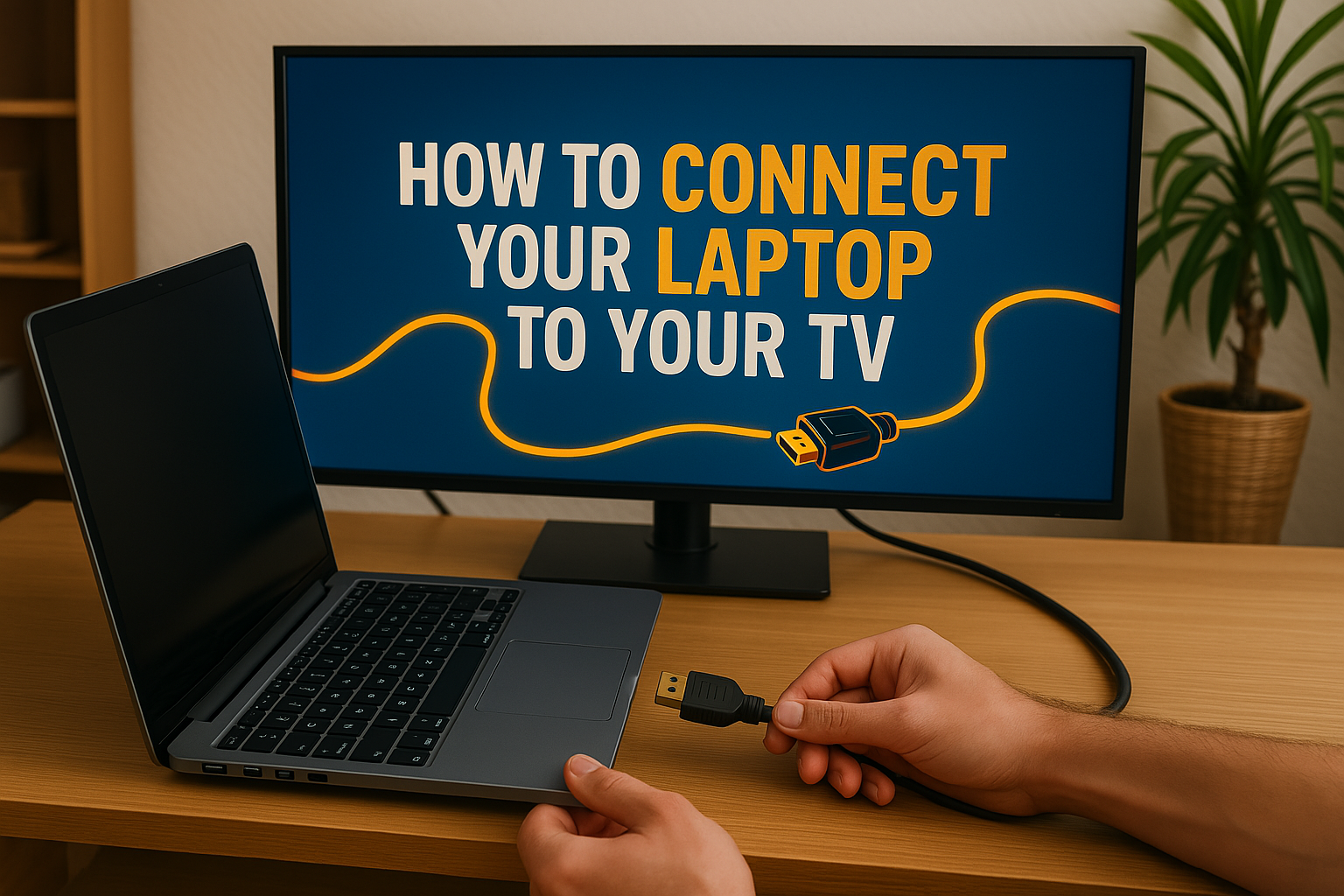
All the Ways That Actually Work 📺
Whether you’re streaming Netflix on a bigger screen, presenting at work, or gaming with friends, connecting your laptop to your TV opens up a world of possibilities. This comprehensive guide covers every method that actually works in 2025, from simple HDMI cables to cutting-edge wireless solutions.
Why Connect Your Laptop to Your TV? 🤔
Before diving into the how-to, let’s explore why millions of people make this connection daily:
- Entertainment Enhancement: Transform your small laptop screen into a cinema experience 🎬
- Professional Presentations: Impress clients and colleagues with seamless displays 💼
- Gaming Upgrade: Enjoy PC games on a massive display with friends 🎮
- Family Sharing: Show photos and videos to everyone at once 👨👩👧👦
- Productivity Boost: Extend your workspace for multitasking magic ⚡
Method 1: HDMI Connection (The Gold Standard) 🏆
The HDMI (High-Definition Multimedia Interface) method remains the most reliable way to connect your laptop to your TV. Here’s why it’s the preferred choice:
What You’ll Need:
- HDMI cable (length depends on your setup)
- Laptop with HDMI port
- TV with HDMI input
Step-by-Step HDMI Setup:
- Power Off Both Devices 🔌 Turn off your laptop and TV to prevent any electrical issues during connection.
- Locate HDMI Ports 🔍 Find the HDMI port on your laptop (usually on the side) and your TV (typically on the back or side).
- Connect the Cable 🔗 Plug one end of the HDMI cable into your laptop and the other into your TV.
- Power On and Select Input 📺 Turn on both devices and use your TV remote to select the correct HDMI input.
- Configure Display Settings ⚙️ Right-click on your desktop and select “Display Settings” to configure how you want the screens to work together.
HDMI Troubleshooting Tips:
- No Signal: Try a different HDMI port on your TV
- Audio Issues: Right-click the speaker icon and select your TV as the audio output
- Resolution Problems: Adjust display settings to match your TV’s native resolution
Method 2: Wireless Connections (Cable-Free Freedom) 📡
Wireless connections have revolutionized how we connect devices. Here are the most effective wireless methods:
Google Chromecast Setup 🌐
Chromecast transforms any TV into a smart display. Here’s how to set it up:
- Initial Setup 🚀
- Plug Chromecast into your TV’s HDMI port
- Download Google Home app on your phone
- Follow the setup wizard
- Casting from Laptop 💻
- Open Google Chrome browser
- Click the three dots menu
- Select “Cast” and choose your Chromecast device
- Full Screen Casting 🖥️
- Click “Sources” in the Cast dialog
- Select “Cast desktop” for full screen sharing
Apple AirPlay (Mac Users) 🍎
AirPlay offers seamless integration for Apple users:
- Requirements ✅
- Mac with macOS Mountain Lion or later
- Apple TV or AirPlay-compatible smart TV
- Connection Steps 🔄
- Click the AirPlay icon in your menu bar
- Select your Apple TV from the list
- Choose “Mirror Display” or “Use as Separate Display”
Miracast (Windows Users) 🪟
Miracast is Microsoft’s wireless display standard:
- Compatibility Check 🔍
- Press Windows key + K
- Look for “Connect to a wireless display”
- Connection Process 📶
- Select your Miracast-enabled TV
- Follow the pairing instructions
- Adjust display settings as needed
Method 3: USB-C Connections (Modern Simplicity) 🔌
USB-C has revolutionized laptop connectivity. Many modern laptops feature USB-C ports with display capabilities:
USB-C to HDMI Adapters 🔄
- Adapter Selection 🛒 Choose a high-quality USB-C to HDMI adapter that supports your laptop’s specifications.
- Connection Process 🔗
- Connect the adapter to your laptop’s USB-C port
- Connect HDMI cable from adapter to TV
- Select appropriate input on TV
USB-C Direct Connection 📺
Some TVs now feature USB-C inputs:
- Single cable solution
- Supports 4K resolution
- Charges laptop while connected
Method 4: Legacy Connections (Older Equipment) 🕰️
Don’t throw away that older laptop! These methods work with vintage equipment:
VGA Connection 📼
VGA (Video Graphics Array) handles video only:
- Cable Requirements 🔌
- VGA cable
- Separate audio cable (3.5mm)
- Setup Process ⚙️
- Connect VGA cable between laptop and TV
- Connect audio cable from laptop headphone jack to TV audio input
- Configure display settings
DVI Connection 🖥️
DVI (Digital Visual Interface) offers better quality than VGA:
- DVI Types 📊
- DVI-D (digital only)
- DVI-I (digital and analog)
- DVI-A (analog only)
- Connection Steps 🔗
- Use appropriate DVI cable
- Connect separate audio cable
- Adjust TV input settings
Audio Considerations: Getting Sound Right 🔊
Audio issues are common when connecting laptops to TVs. Here’s how to fix them:
Windows Audio Setup 🪟
- Audio Output Selection 🎵
- Right-click speaker icon in system tray
- Select “Open Sound settings”
- Choose your TV from output devices
- Audio Troubleshooting 🔧
- Update audio drivers
- Check cable connections
- Restart audio services
Mac Audio Setup 🍎
- System Preferences ⚙️
- Click Apple menu > System Preferences
- Select Sound > Output
- Choose your TV from the list
- Audio Quality 🎧
- Check sample rate settings
- Adjust volume levels
- Test different audio formats
Resolution Settings: Making It Look Perfect 📐
Getting the right resolution ensures optimal viewing:
Windows Display Settings 🪟
- Access Display Settings 🖥️
- Right-click desktop
- Select “Display settings”
- Choose “Advanced display settings”
- Resolution Optimization 🎯
- Match your TV’s native resolution
- Adjust scaling for text clarity
- Test different refresh rates
Mac Display Settings 🍎
- System Preferences ⚙️
- Apple menu > System Preferences
- Select Displays
- Choose “Scaled” for more options
- Resolution Matching 🎪
- Select your TV’s optimal resolution
- Adjust color profile if needed
- Test motion smoothness
Presentation Mode: Extending vs Mirroring 📊
Understanding display modes maximizes productivity:
Mirror Mode 🪞
- Same content on both screens
- Perfect for presentations
- Ideal for entertainment
Extended Mode 📏
- Laptop screen becomes secondary display
- Drag windows between screens
- Enhanced productivity setup
Projector Mode 📽️
- Laptop screen off, TV displays only
- Saves battery life
- Clean presentation setup
Gaming Setup: TV as Gaming Monitor 🎮
Transform your TV into the ultimate gaming display:
Performance Optimization 🚀
- Game Mode Activation ⚡
- Enable TV’s game mode
- Reduces input lag
- Optimizes refresh rates
- Graphics Settings 🎨
- Adjust in-game resolution
- Configure graphics quality
- Enable V-sync if needed
Controller Setup 🎯
- Wireless Controllers 📶
- Bluetooth pairing
- USB receiver setup
- Custom button mapping
- Gaming Experience 🏆
- Adjust TV position for comfort
- Optimize audio settings
- Configure multiple controllers
Cable Recommendations: What Actually Works 🛒
Not all cables are created equal. Here’s what to buy:
HDMI Cables 🔌
- HDMI 2.1 Standard ⚡
- 4K at 120fps support
- Enhanced audio return channel
- Variable refresh rate
- Length Considerations 📏
- Under 25 feet: Standard HDMI
- Over 25 feet: Active HDMI cables
- Quality brands: Belkin, AmazonBasics, AudioQuest
Wireless Adapters 📡
- Chromecast Ultra 🌐
- 4K HDR support
- Ethernet port option
- Voice control compatibility
- Apple TV 4K 🍎
- Premium build quality
- Extensive app ecosystem
- Seamless Mac integration
Troubleshooting Common Issues 🔧
Even the best setups sometimes have problems. Here’s how to fix them:
No Signal Issues 📺
- Check All Connections 🔍
- Ensure cables are fully inserted
- Try different ports
- Test with another device
- Input Selection 📻
- Verify correct TV input
- Check cable box interference
- Reset TV settings if needed
Audio Problems 🔊
- Driver Updates 💻
- Update graphics drivers
- Install latest audio drivers
- Restart audio services
- Hardware Checks 🔧
- Test different cables
- Check port functionality
- Verify TV audio settings
Performance Issues ⚡
- System Resources 💾
- Close unnecessary programs
- Check RAM usage
- Monitor CPU temperature
- Display Optimization 🎯
- Reduce resolution if needed
- Adjust refresh rates
- Enable hardware acceleration
Advanced Tips for Power Users 🚀
Take your setup to the next level:
Multi-Monitor Setup 🖥️🖥️
- Triple Display Configuration 📐
- Laptop screen + TV + external monitor
- Configure display positions
- Set primary display preferences
- Productivity Workflows 📊
- Dedicate screens to specific tasks
- Use virtual desktops
- Configure custom shortcuts
Streaming Optimization 📺
- Network Requirements 🌐
- Minimum 25 Mbps for 4K
- Wired connection preferred
- Quality of Service settings
- Software Recommendations 💻
- OBS Studio for screen recording
- VLC for media playback
- Chrome for web streaming
Future-Proofing Your Setup 🔮
Technology evolves rapidly. Here’s how to stay ahead:
Emerging Standards 🆕
- HDMI 2.1 ⚡
- 8K resolution support
- Dynamic HDR
- Enhanced gaming features
- USB4 🔌
- Thunderbolt 3 compatibility
- 40 Gbps bandwidth
- Single cable solution
Wireless Evolution 📡
- Wi-Fi 6E 🌐
- 6GHz band support
- Reduced latency
- Better streaming quality
- 5G Integration 📶
- Mobile hotspot capabilities
- Ultra-low latency
- Enhanced mobility
Conclusion: Your Perfect Connection Awaits 🎉
Connecting your laptop to your TV doesn’t have to be complicated. Whether you choose the reliability of HDMI, the convenience of wireless, or the simplicity of USB-C, the key is selecting the method that best fits your needs and equipment.
Start with HDMI if you want the most reliable connection with the best quality. Try wireless solutions like Chromecast or AirPlay for convenience and flexibility. For modern laptops, USB-C offers the perfect balance of simplicity and performance.
Remember, the best connection method is the one that works consistently with your specific devices and use cases. Don’t be afraid to experiment with different approaches until you find your perfect setup.
Happy connecting, and enjoy your expanded screen real estate! 🎬📺✨
Did this guide help you connect your laptop to your TV? Share your success stories and any additional tips in the comments below!