
What You Should Never Do on Public Internet 🔐
Last Updated: July 2025
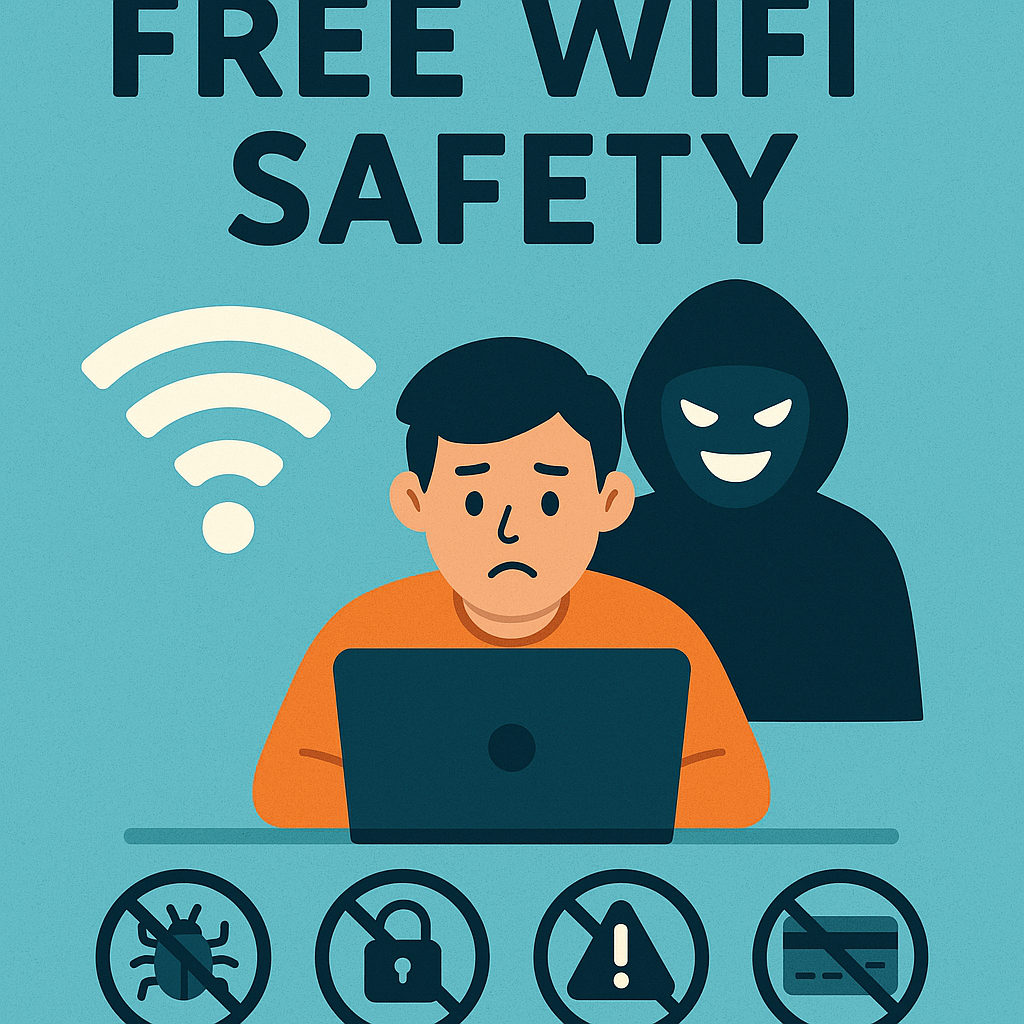
Free WiFi is everywhere these days – from your favorite coffee shop to airport lounges, hotels, and shopping malls. While convenient, public internet connections can be a cybercriminal’s playground if you’re not careful. This comprehensive guide will teach you exactly what to avoid and how to stay safe when using public WiFi networks.
Why Public WiFi Safety Matters More Than Ever 🚨
In 2024, cybersecurity experts reported a 300% increase in attacks targeting public WiFi users. With remote work becoming the norm and people spending more time in cafes and co-working spaces, understanding public WiFi safety isn’t just helpful – it’s essential.
Public WiFi networks are inherently insecure because they’re designed for convenience, not security. Unlike your home network, which is protected by WPA3 encryption and a strong password, most public networks have minimal security measures. This makes them perfect hunting grounds for hackers who can easily intercept your data, steal passwords, or inject malware into your device.
The Hidden Dangers of Public WiFi Networks 🎯
Data Interception and Eavesdropping
When you connect to public WiFi, your data travels through the air in packets that can be intercepted by anyone with basic hacking tools. This process, called “packet sniffing,” allows cybercriminals to capture sensitive information like passwords, credit card numbers, and personal messages.
Evil Twin Networks
Hackers often create fake WiFi networks that mimic legitimate ones. For example, they might create a network called “Starbucks_Free” near a real Starbucks location. When you connect to this fake network, all your internet traffic flows through the hacker’s device, giving them complete access to your data.
Man-in-the-Middle Attacks
In these attacks, hackers position themselves between you and the internet connection. They can then monitor, modify, or steal any data you send or receive. This is particularly dangerous when accessing sensitive accounts or making online purchases.
What You Should NEVER Do on Public WiFi 🚫
1. Banking and Financial Activities 💳
Never access your bank account, credit card statements, or investment portfolios on public WiFi. This is the golden rule of public internet safety. Banking websites contain your most sensitive financial information, and even with HTTPS encryption, the risk isn’t worth it.
Why it’s dangerous:
- Hackers can intercept login credentials
- Man-in-the-middle attacks can bypass some security measures
- Mobile banking apps aren’t immune to these risks on public networks
What to do instead:
- Use your mobile data for banking
- Wait until you’re on a secure, private network
- If absolutely necessary, use a reputable VPN service
2. Shopping and Online Purchases 🛒
Avoid making purchases on public WiFi, especially for expensive items or from unfamiliar websites. While major retailers like Amazon have strong security measures, the public network itself remains the weak link.
Safe vs. Dangerous shopping on public WiFi:
Generally Safe:
- Browsing products without logging in
- Adding items to wish lists
- Reading reviews and comparing prices
- Window shopping on major retailers
Dangerous:
- Entering credit card information
- Logging into shopping accounts
- Making payments of any kind
- Purchasing from unknown or small websites
3. Password-Related Activities 🔑
Never log into important accounts that require passwords on public WiFi. This includes email accounts, social media, work platforms, and especially password managers.
Accounts to avoid accessing:
- Email accounts (Gmail, Outlook, Yahoo)
- Social media accounts with personal information
- Work or school accounts
- Cloud storage services (Google Drive, Dropbox)
- Password managers
Exception: If you must access these accounts, use two-factor authentication and ensure the website uses HTTPS encryption.
4. Work Email and Corporate Resources 📧
Don’t access work email or corporate resources on public WiFi unless your company has specific security protocols in place. Many companies have VPN requirements for remote access for good reason.
Why it’s risky:
- Corporate data breaches can have severe legal consequences
- Confidential information could be intercepted
- Malware could spread to company networks
Safe alternatives:
- Use your company’s VPN if provided
- Access work email through your mobile data
- Use your company’s secure mobile app if available
5. Downloading Files and Software 📥
Never download software, apps, or files from the internet while on public WiFi. Hackers can inject malware into downloads or redirect you to malicious websites.
What to avoid downloading:
- Software updates (unless critical security patches)
- Apps from unknown sources
- Large files or media
- Email attachments from unknown senders
Safe practices:
- Download important files on your home network
- Use your mobile data for urgent downloads
- Verify file integrity with checksums when possible
6. Automatic WiFi Connections 📶
Turn off automatic WiFi connections on all your devices. This feature makes your device connect to any available network, including potentially malicious ones.
How to disable automatic connections:
On iPhone:
- Settings > WiFi > Ask to Join Networks > Select “Ask”
- Turn off “Auto-Join” for suspicious networks
On Android:
- Settings > Network & Internet > WiFi > WiFi Preferences
- Turn off “Connect to open networks automatically”
On Windows:
- Settings > Network & Internet > WiFi > Manage Known Networks
- Disable “Connect automatically” for public networks
7. Accessing Personal Cloud Storage ☁️
Avoid uploading or downloading personal files from cloud storage services on public WiFi. This includes photos, documents, and backups.
Why it’s risky:
- Personal files could be intercepted during transfer
- Hackers might gain access to your cloud accounts
- Malware could be injected into downloaded files
Hotel WiFi: Special Safety Considerations 🏨
Hotels present unique WiFi security challenges. While they offer convenience for travelers, hotel networks are often poorly secured and monitored by cybercriminals.
Hotel WiFi Safety Tips:
Choose the right network:
- Connect to the official hotel network, not generic names like “Free WiFi”
- Ask the front desk for the correct network name
- Avoid networks that don’t require any form of authentication
Use additional security measures:
- Enable your device’s firewall
- Turn off file sharing and AirDrop
- Use HTTPS-only browsing when possible
- Consider using a travel router for added security
Be cautious of login pages:
- Legitimate hotel WiFi usually requires a room number or access code
- Be suspicious of login pages asking for personal information
- Never enter credit card details on WiFi login pages
Coffee Shop Internet: Staying Safe at Starbucks and Beyond ☕
Coffee shops are popular remote work destinations, but their WiFi networks require special attention to safety.
Coffee Shop Safety Rules:
Choose your seat wisely:
- Sit with your back to a wall to prevent screen viewing
- Avoid seats near windows where outsiders can see your screen
- Choose locations with good visibility of the surrounding area
Network selection:
- Connect to the official coffee shop network
- Starbucks uses “Starbucks WiFi” – beware of similar names
- Ask staff for the correct network name if unsure
Behavioral safety:
- Keep your voice low during phone calls
- Don’t leave your device unattended
- Be aware of people around you who might be watching your screen
VPN Basics: Your Shield Against Public WiFi Risks 🛡️
A Virtual Private Network (VPN) creates a secure, encrypted tunnel between your device and the internet. This is your best defense against public WiFi risks.
How VPNs Protect You:
Encryption: VPNs encrypt all your internet traffic, making it unreadable to hackers even if they intercept it.
IP Address Masking: Your real IP address is hidden, making it harder for attackers to target your device.
Secure Connection: VPNs route your traffic through secure servers, bypassing potentially compromised public networks.
Choosing a VPN Service:
Look for these features:
- Strong encryption (AES-256)
- No-logs policy
- Kill switch functionality
- Multiple server locations
- Good customer support
Popular reliable VPN services:
- ExpressVPN
- NordVPN
- Surfshark
- CyberGhost
VPN Setup Tips:
Enable VPN before connecting to public WiFi:
- Turn on your VPN app
- Connect to a server in your country for best speed
- Verify your connection is secure
- Then connect to the public WiFi network
Social Media: What’s Safe and What’s Not 📱
Social media usage on public WiFi falls into a gray area. While generally safer than banking, certain activities should be avoided.
Safe Social Media Activities:
- Browsing your feed without logging in
- Watching videos on platforms like YouTube
- Reading news articles shared on social platforms
- Casual browsing of public profiles
Risky Social Media Activities:
- Logging into accounts with sensitive information
- Sending private messages with personal details
- Uploading photos with location data
- Changing account settings or passwords
- Accessing business social media accounts
Social Media Safety Tips:
- Enable two-factor authentication on all accounts
- Use strong, unique passwords for each platform
- Regularly review your privacy settings
- Be cautious about clicking on links in posts
Advanced Public WiFi Safety Measures 🔧
Use Your Mobile Hotspot Instead
Your smartphone’s mobile data is much safer than public WiFi. Consider using your phone as a hotspot for your laptop or tablet when you need internet access in public places.
Benefits of mobile hotspots:
- Encrypted connection through your carrier
- No shared network with other users
- Complete control over who connects
- Usually faster than crowded public WiFi
Enable Two-Factor Authentication
Two-factor authentication (2FA) adds an extra layer of security to your accounts. Even if someone intercepts your password, they’ll need a second form of verification to access your account.
Enable 2FA on:
- Email accounts
- Social media platforms
- Banking and financial services
- Work accounts
- Cloud storage services
Keep Software Updated
Outdated software contains security vulnerabilities that hackers can exploit. Always keep your operating system, apps, and security software updated.
Update regularly:
- Operating system security patches
- Web browser updates
- Antivirus software
- Mobile apps
- Router firmware (for your home network)
Use HTTPS Everywhere
HTTPS encrypts data between your browser and websites. Look for the padlock icon in your browser’s address bar, and avoid sites that don’t use HTTPS.
Browser extensions for HTTPS:
- HTTPS Everywhere (by EFF)
- DuckDuckGo Privacy Essentials
- uBlock Origin
Creating a Public WiFi Safety Checklist ✅
Before connecting to any public WiFi network, run through this safety checklist:
Pre-Connection:
- [ ] VPN is enabled and connected
- [ ] Automatic WiFi connection is disabled
- [ ] File sharing is turned off
- [ ] Firewall is enabled
- [ ] Antivirus software is updated
During Connection:
- [ ] Connected to the correct, official network
- [ ] Verified network name with staff if unsure
- [ ] Using HTTPS websites only
- [ ] Avoiding sensitive activities (banking, shopping)
- [ ] Being aware of surroundings
Post-Connection:
- [ ] Disconnect from the network when finished
- [ ] Forget the network if you won’t use it again
- [ ] Check for any suspicious activity on your accounts
- [ ] Run a security scan on your device
What to Do If You Think You’ve Been Compromised 🚨
Despite taking precautions, you might sometimes suspect that your security has been compromised. Here’s what to do:
Immediate Actions:
- Disconnect from the public WiFi network immediately
- Switch to your mobile data or a secure network
- Change passwords for any accounts you accessed
- Enable two-factor authentication if not already active
- Check your bank and credit card statements
Follow-up Actions:
- Run a full antivirus scan on your device
- Monitor your accounts for unusual activity
- Consider freezing your credit if financial information was exposed
- Contact your bank if you accessed financial accounts
- Update your security software
The Future of Public WiFi Security 🔮
As technology evolves, so do both the threats and protections surrounding public WiFi. New standards like WPA3 provide better security, and many businesses are implementing more robust network security measures.
Emerging trends:
- Improved encryption standards
- Better user authentication methods
- AI-powered threat detection
- Increased VPN adoption
- Enhanced mobile security features
Conclusion: Stay Safe, Stay Connected 🌐
Public WiFi doesn’t have to be scary if you know how to use it safely. By following these guidelines – avoiding banking and shopping, using a VPN, keeping software updated, and staying aware of your surroundings – you can enjoy the convenience of free internet without compromising your security.
Remember, the golden rule of public WiFi safety is simple: when in doubt, don’t do it. Use your mobile data for sensitive activities, and save the public WiFi for casual browsing and entertainment. Your personal information and financial security are worth the extra caution.
Stay safe, stay informed, and enjoy your connected world responsibly! 🔐✨
Have you experienced any public WiFi security issues? Share your experiences and tips in the comments below to help others stay safe online.