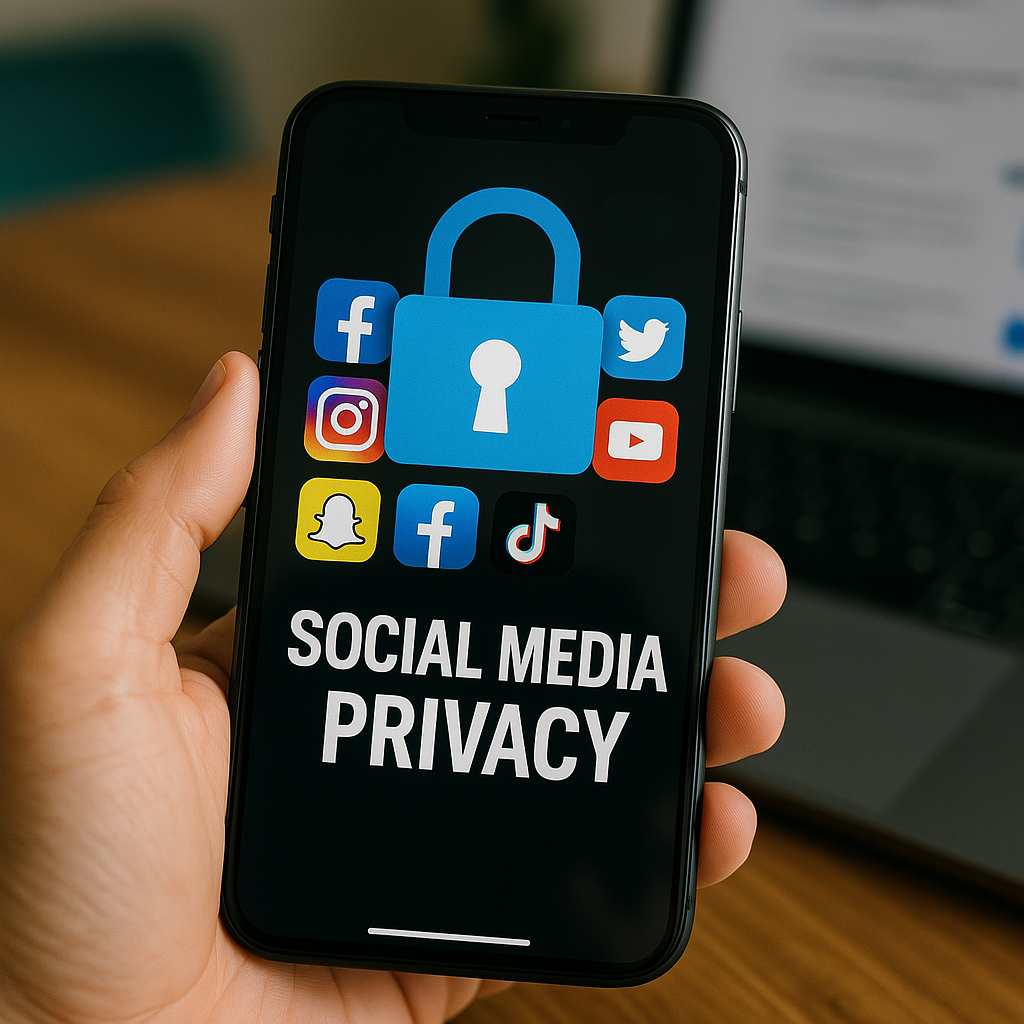
Your social media accounts are digital goldmines of personal information. Every post, photo, and interaction creates a detailed profile of your life that can be exploited by cybercriminals, data brokers, and malicious actors. With over 4.8 billion people using social media worldwide, privacy breaches have become increasingly common, making it crucial to secure your digital presence immediately.
Most users accept default privacy settings without realizing they’re broadcasting intimate details to strangers. From your location data to personal relationships, social media platforms collect and share more information than you might imagine. The good news? A few simple setting changes can dramatically improve your online privacy and security.
Why Social Media Privacy Matters More Than Ever 🛡️
Recent data breaches have exposed millions of user accounts across major platforms. Facebook alone has experienced multiple security incidents affecting billions of users. These breaches can lead to identity theft, financial fraud, stalking, and professional damage. Your personal information can be sold on dark web marketplaces or used for targeted scams.
Beyond security breaches, social media companies profit from your data by selling it to advertisers and third-party companies. This creates detailed behavioral profiles used for targeted advertising, political manipulation, and social engineering attacks. Understanding and controlling your privacy settings is essential for protecting your digital identity and maintaining control over your personal information.
1. Facebook Privacy Settings: Lock Down Your Profile 📘
Facebook collects extensive data about users, making privacy settings crucial for protection. Start by reviewing your Privacy Settings & Tools section in your account settings.
Profile Information Visibility: Navigate to Settings > Privacy > Who can see your future posts and change this to “Friends” instead of “Public.” This prevents strangers from viewing your personal updates and photos. Additionally, limit who can see your friends list, email address, and phone number to “Only Me” or “Friends.”
Timeline and Tagging Controls: Under Settings > Timeline and Tagging, restrict who can post on your timeline and who can see posts you’re tagged in. Enable timeline review so you can approve posts before they appear on your profile. This prevents friends from accidentally sharing embarrassing or compromising content on your timeline.
Apps and Websites: Review and remove unnecessary app permissions in Settings > Apps and Websites. Many third-party applications request excessive permissions to access your profile information, friend lists, and posting abilities. Remove apps you no longer use and limit permissions for active applications.
Facial Recognition: Disable facial recognition features in Settings > Face Recognition. This prevents Facebook from automatically identifying you in photos uploaded by others, reducing unwanted tagging and improving privacy.
2. Instagram Safety: Protect Your Stories and Messages 📸
Instagram’s visual nature makes privacy settings particularly important for protecting personal photos and stories from unwanted viewers.
Account Privacy: Switch to a private account in Settings > Privacy > Account Privacy. This requires approval for all follow requests, giving you control over who can see your content. Public accounts allow anyone to view your photos, stories, and profile information.
Story Privacy: Customize who can view your Instagram Stories in Settings > Privacy > Story. You can hide stories from specific users or create a “Close Friends” list for sensitive content. This prevents acquaintances, coworkers, or ex-partners from viewing personal moments.
Direct Message Controls: Under Settings > Privacy > Messages, restrict who can send you direct messages. You can limit messages to people you follow or disable message requests entirely. This reduces spam, harassment, and unwanted contact from strangers.
Activity Status: Disable “Show Activity Status” in Settings > Privacy > Activity Status. This prevents others from seeing when you’re online or when you last used Instagram, providing better privacy and reducing pressure to respond immediately to messages.
3. TikTok Privacy: Safeguard Your Data and Content 🎵
TikTok’s algorithm and data collection practices make privacy settings essential for protecting your information and controlling content visibility.
Account Privacy: Make your account private in Settings > Privacy > Private Account. This requires approval for followers and prevents your videos from appearing in public feeds or search results. Only approved followers can view, like, or comment on your content.
Data Download and Portability: Request your data download in Settings > Privacy > Download your data. This shows exactly what information TikTok has collected about you, including watch history, search queries, and profile information. Review this data regularly to understand your digital footprint.
Personalization and Data: Limit data collection in Settings > Privacy > Personalization and data. Disable “Use for personalization” to prevent TikTok from using your activity for targeted advertising. This reduces the amount of behavioral data collected about your preferences and interests.
Safety Settings: Enable restricted mode and set content preferences in Settings > Digital Wellbeing > Restricted Mode. This filters out potentially mature content and provides better control over what appears in your feed.
4. Twitter Privacy: Control Your Digital Footprint 🐦
Twitter’s public nature requires careful privacy management to protect your personal information and control who can interact with you.
Tweet Privacy: Enable “Protect your Tweets” in Settings > Privacy and safety > Audience and tagging. This makes your tweets visible only to approved followers instead of the general public. Consider whether you want professional or personal visibility before enabling this setting.
Photo Tagging: Disable “Allow others to tag you in photos” in Settings > Privacy and safety > Tagging. This prevents others from associating your account with potentially embarrassing or compromising photos without your consent.
Discoverability: Limit how others can find you in Settings > Privacy and safety > Discoverability. Uncheck “Let others find you by your email address” and “Let others find you by your phone number” to prevent unwanted contact from people with your contact information.
Data Sharing: Review and adjust data sharing settings in Settings > Privacy and safety > Data sharing and off-Twitter activity. Limit how Twitter shares your data with business partners and disable tracking of your activity on other websites.
5. LinkedIn Privacy: Professional Boundary Management 💼
LinkedIn’s professional focus requires balanced privacy settings that protect personal information while maintaining career networking opportunities.
Public Profile Settings: Customize your public profile in Settings > Privacy > Public profile. Choose which information appears in search engines and limit personal details like contact information, location, and connections from public view.
Activity Broadcasts: Disable activity updates in Settings > Privacy > Sharing profile edits. This prevents notifications when you update your profile, allowing you to make changes without alerting your entire network about job searches or career transitions.
Data Export: Download your LinkedIn data in Settings > Privacy > Getting a copy of your data. This provides insight into the information LinkedIn has collected and allows you to review your digital footprint on the platform.
Ad Preferences: Limit targeted advertising in Settings > Privacy > Advertising data. Disable interest-based advertising and prevent LinkedIn from using your profile information for targeted marketing campaigns.
6. Google Privacy: Search History and Location Controls 🔍
Google’s extensive data collection across multiple services requires comprehensive privacy management for effective protection.
Search History: Manage your search history in My Activity > Web & App Activity. You can pause activity tracking, delete existing history, or set automatic deletion for searches, YouTube views, and location data. This prevents Google from building detailed behavioral profiles.
Location Tracking: Disable location history in Google Account > Data & personalization > Location History. This prevents Google from tracking your movements and creating detailed maps of your daily routines. Also disable “Web & App Activity” location tracking for comprehensive protection.
YouTube Privacy: Manage YouTube history in My Activity > YouTube History. Delete watch and search history, disable future tracking, and adjust autoplay settings to limit data collection about your viewing preferences and interests.
Google Photos: Review sharing and facial recognition settings in Google Photos. Disable automatic face grouping and limit sharing permissions to prevent unwanted access to personal photos and location metadata.
7. Profile Picture Privacy: What Not to Share 📷
Your profile picture is often the first impression people get of you online, making it crucial to choose and manage these images carefully.
Avoid Personal Information: Never use photos containing personal information like house numbers, license plates, school names, or workplace identifiers. These details can be used for social engineering attacks or to determine your location and daily routines.
Location Metadata: Remove location data from photos before uploading. Most smartphones automatically embed GPS coordinates in photos, which can reveal your home address or frequent locations. Use photo editing tools to strip metadata before sharing.
Professional Considerations: Consider how your profile picture reflects on your professional reputation. Avoid controversial symbols, inappropriate clothing, or backgrounds that might affect job prospects or professional relationships.
Facial Recognition: Be aware that profile pictures are often used for facial recognition across platforms. Consider using illustrations, logos, or partially obscured photos if you want to limit automated identification.
8. Location Sharing: When to Turn It Off 📍
Location sharing provides convenience but creates significant privacy and security risks that require careful management.
Geotagging in Posts: Disable automatic location tagging in social media posts. This prevents strangers from tracking your movements and determining your daily routines. Most platforms allow you to add location information manually when desired.
Check-in Features: Avoid using check-in features that broadcast your real-time location to your social network. This information can be used for stalking, burglary (by revealing when you’re away from home), or other malicious purposes.
App Permissions: Review location permissions for all social media apps on your phone. Disable “Always” location access and choose “While Using App” or “Never” depending on your privacy preferences. This prevents apps from tracking your location when not actively using them.
Location History: Regularly delete location history from your accounts and devices. This removes historical data that could be used to determine your patterns, relationships, and frequent locations.
9. Friend Requests: Handle Strangers Safely 👥
Managing friend requests and connections is crucial for maintaining privacy and security on social media platforms.
Verification Process: Never accept friend requests from unknown individuals. Verify mutual connections, check profile authenticity, and research suspicious accounts before accepting requests. Fake accounts are commonly used for social engineering attacks.
Privacy Before Accepting: Review privacy settings to ensure limited information is visible to non-friends. Even if someone seems legitimate, sharing personal information with strangers creates unnecessary risks.
Regular Cleanup: Periodically review your friend list and remove inactive, suspicious, or unwanted connections. People change over time, and maintaining a clean friend list improves privacy and reduces potential security risks.
Professional Boundaries: Maintain separate personal and professional accounts when possible. This allows you to share personal content with close friends while maintaining professional connections on appropriate platforms.
10. Two-Factor Authentication: Essential Security Upgrade 🔐
Two-factor authentication (2FA) provides an additional security layer that significantly reduces the risk of account compromise.
Enable 2FA Everywhere: Activate two-factor authentication on all social media accounts. This requires a second form of verification (usually a phone number or authentication app) in addition to your password, making unauthorized access extremely difficult.
Authentication Apps: Use authentication apps like Google Authenticator or Authy instead of SMS when possible. Phone numbers can be hijacked through SIM swapping attacks, making authentication apps more secure for account protection.
Backup Codes: Save backup codes in a secure location when setting up 2FA. These codes allow account recovery if you lose access to your primary authentication method. Store them in a password manager or secure physical location.
Regular Updates: Periodically review and update your 2FA settings. Remove old phone numbers, update authentication apps, and ensure backup options remain accessible and secure.
Additional Privacy Protection Tips 🛡️
Beyond platform-specific settings, implement these additional measures for comprehensive social media privacy protection:
Regular Privacy Audits: Conduct monthly reviews of your privacy settings across all platforms. Social media companies frequently update their policies and default settings, requiring ongoing attention to maintain privacy protection.
Strong Passwords: Use unique, complex passwords for each social media account. Consider using a password manager to generate and store secure passwords for all your accounts.
Privacy-Focused Browsers: Use browsers with enhanced privacy features or privacy-focused search engines like DuckDuckGo to limit tracking when accessing social media platforms.
VPN Usage: Consider using a virtual private network (VPN) when accessing social media, especially on public Wi-Fi networks. This encrypts your internet connection and masks your IP address.
Conclusion: Take Control of Your Digital Privacy Today 🎯
Social media privacy isn’t just about hiding personal information—it’s about taking control of your digital identity and protecting yourself from real-world harm. These ten essential privacy settings provide a foundation for safer social media use, but remember that privacy is an ongoing process requiring regular attention and updates.
Start implementing these changes today, beginning with the platforms you use most frequently. Don’t wait for a privacy breach or security incident to motivate action. Your personal information is valuable, and protecting it should be a priority in our increasingly connected world.
Remember that privacy settings are just one part of a comprehensive approach to online safety. Combine these technical measures with smart sharing habits, critical thinking about online interactions, and regular security awareness to create a robust defense against privacy threats.
Take the time to review and adjust these settings—your future self will thank you for the protection and peace of mind these simple changes provide.