
Step-by-Step: 📱🔓
We’ve all been there – standing in front of our phone, frantically trying different password combinations, wondering how we could possibly forget something we enter dozens of times every day. Don’t panic! 😅 Forgetting your phone password is way more common than you think, and the good news is there are several reliable ways to get back into your device without losing your precious photos, messages, and apps.
Why Do We Forget Our Phone Passwords? 🤔
Before jumping into solutions, let’s talk about why this happens. Our brains are incredible, but they’re not perfect storage devices. Maybe you recently changed your password for security reasons, or perhaps you’ve been using fingerprint unlock so long that you haven’t typed your passcode in weeks. Sometimes stress, lack of sleep, or just having too much on your mind can make us draw a blank on even the most familiar numbers or patterns.
The worst part? Most phones will temporarily lock you out after several failed attempts, making the situation feel even more frustrating. But here’s the thing – phone manufacturers know this happens, so they’ve built in several recovery options. You just need to know where to find them! 💡
iPhone Password Reset Solutions 🍎
Method 1: Using Your Apple ID (iOS 15.2 and Later)
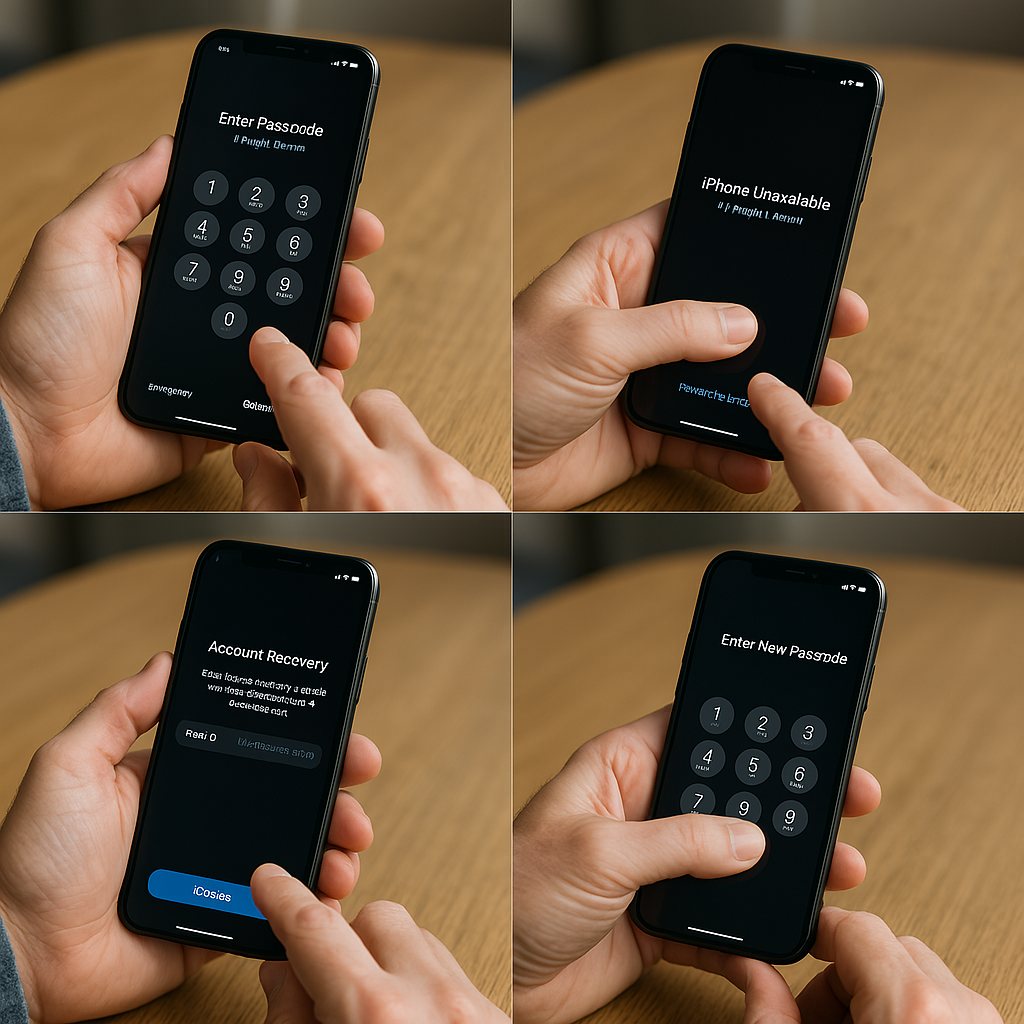
If you’re running a newer version of iOS, Apple has made password recovery much easier. After entering the wrong passcode several times, you’ll see a “Forgot Passcode?” option appear in the bottom corner of your lock screen. This is your golden ticket! ✨
Tap on “Forgot Passcode?” and your iPhone will ask you to sign in with your Apple ID. Make sure you’re connected to Wi-Fi or cellular data for this to work. Enter your Apple ID email and password – the same ones you use for the App Store, iCloud, and other Apple services. Once verified, you’ll be able to set a brand new passcode right there on your device.
This method is fantastic because it doesn’t erase any of your data. Your photos, apps, messages, and settings all stay exactly where they were. It’s like having a spare key hidden under your digital doormat! 🗝️
Method 2: iTunes/Finder Recovery Mode
For older iPhones or if the Apple ID method isn’t working, you can use recovery mode. Fair warning – this will erase everything on your phone, so hopefully you have a recent backup! 💾
Connect your iPhone to a computer with iTunes (Windows or older Mac) or Finder (newer Mac). You’ll need to put your phone into recovery mode, and the process varies slightly depending on your iPhone model:
For iPhone 8 and newer: Quickly press and release volume up, then volume down, then hold the side button until you see the recovery mode screen.
For iPhone 7 series: Hold volume down and the side button together until recovery mode appears.
For iPhone 6s and older: Hold the home button and top/side button together.
Once in recovery mode, your computer will detect the phone and offer to restore it. Choose “Restore iPhone” and let the process complete. You’ll then need to set up your phone as new or restore from a backup.
Method 3: Find My iPhone Erase Feature
If you have Find My iPhone enabled (and most people do), you can remotely erase your device from another device or computer. Go to icloud.com/find, sign in with your Apple ID, select your locked iPhone, and choose “Erase iPhone.” 🌐
This method is particularly useful if you’re away from your computer or if someone else’s phone or laptop is handy. Just remember – like recovery mode, this erases everything, so you’ll want that backup ready!
Android Password Reset Solutions 🤖
Android devices offer their own set of recovery options, though they vary slightly depending on your phone’s manufacturer and Android version.
Method 1: Google Account Recovery (Older Android Versions)
If you’re using an older Android device (typically Android 4.4 and below), you might see a “Forgot Pattern” or “Forgot Password” option after several failed attempts. This lets you sign in with your Google account to unlock your device. 📧
Enter your Gmail address and password, and your phone will unlock. You can then set a new lock screen password or pattern. This method was phased out in newer Android versions for security reasons, but it’s still available on older devices.
Method 2: Samsung Find My Mobile
Samsung users have a special advantage with Find My Mobile service. If you’ve set up a Samsung account on your device, you can visit findmymobile.samsung.com, sign in, select your device, and choose “Unlock my device.” 🔐
This service can remotely remove your lock screen password without erasing your data – pretty neat! You’ll need to have registered your device with Samsung and enabled remote controls beforehand, but many Samsung users have this set up without realizing it.
Method 3: Android Device Manager / Find My Device
Google’s Find My Device service works similarly to Find My iPhone. Visit android.com/find, sign in with your Google account, select your locked device, and choose “Erase device.” Like other erase methods, this wipes everything but gets you back into your phone. 📲
Method 4: Factory Reset via Recovery Mode
This is the nuclear option for Android devices. Turn off your phone completely, then boot into recovery mode using a combination of buttons (usually volume up + power, but this varies by manufacturer). Use volume buttons to navigate to “Wipe data/factory reset” and confirm with the power button.
Smart Recovery Options for Both Platforms 🧠
Biometric Backup Plans
Many people forget they can use their fingerprint, face, or voice to unlock their device even when they can’t remember their password. If you’ve set up biometric authentication, try using your fingerprint or face unlock first – you might not need to reset anything at all! 👆
Emergency Contacts and Trusted Devices
Both iPhone and Android devices allow you to set up trusted contacts or devices that can help with account recovery. If you’ve configured these (and you really should!), they can often provide alternative ways to verify your identity and regain access.
Professional Help Options
Sometimes DIY solutions don’t work, and that’s okay! Many phone repair shops and carrier stores can help with password resets. They have specialized tools and experience dealing with locked devices. Just make sure to bring proof of ownership (receipt, ID matching the account name, etc.) because legitimate businesses won’t unlock a phone without proper verification. 🏪
Prevention Tips: Never Get Locked Out Again! 🛡️
Set Up Multiple Authentication Methods
Don’t rely on just one unlock method. Set up fingerprint, face unlock, AND a memorable passcode. This gives you multiple ways to access your device if one method fails.
Use Memorable but Secure Passwords
Choose a passcode that means something to you but isn’t obvious to others. Maybe it’s a significant date written backwards, or the number of letters in your pet’s name combined with your favorite sports number. Just avoid obvious choices like 1234, 0000, or your birth year. 🎯
Regular Backup Habits
Set up automatic backups to iCloud (iPhone) or Google Drive (Android). If you ever need to factory reset, you’ll have a recent backup ready to restore. Most phones can back up daily over Wi-Fi, so you’ll rarely lose more than a day’s worth of data.
Write It Down (Securely)
Consider keeping your passcode written down in a secure location at home – maybe in a locked drawer or safe. Yes, physical security matters too, but having a backup record can save you hours of frustration.
Regular Password Updates
Change your passcode every few months, but when you do, use it manually for a week or two instead of relying on biometric unlock. This helps cement the new code in your memory. 🔄
What About Your Data? 💾
One of the biggest concerns when resetting a phone password is losing important data. Here’s what typically survives different reset methods:
Cloud-synced data like contacts, photos (if you use Google Photos or iCloud Photos), and app data usually survives because it’s stored online. Local files like screenshots, downloaded music, or app data that wasn’t synced might be lost during a factory reset.
Text messages are often backed up automatically on iPhones (to iCloud) and can be backed up on Android (to Google). App data varies – some apps store everything in the cloud, others keep data locally.
The best protection is prevention through regular backups, but even if you haven’t backed up recently, you might be surprised how much of your important stuff is already safely stored in the cloud! ☁️
Troubleshooting Common Issues 🔧
“iTunes Cannot Connect” Errors
If iTunes or Finder won’t recognize your iPhone in recovery mode, try a different USB cable or port. Sometimes the cable that works for charging won’t work for data transfer. Also, make sure you’re running the latest version of iTunes or that your Mac’s Finder is up to date.
Android Recovery Mode Won’t Start
Different Android manufacturers use different button combinations for recovery mode. If the standard volume up + power doesn’t work, try volume down + power, or look up your specific phone model’s recovery combination online.
Backup Restoration Taking Forever
Large backups can take several hours to restore, especially if you’re doing it over Wi-Fi. Be patient, keep your device plugged in, and avoid interrupting the process. If it seems stuck, most devices will show progress indicators to let you know things are still happening. ⏳
Two-Factor Authentication Problems
If you’re having trouble with Apple ID or Google account verification during recovery, remember that two-factor authentication might require access to another trusted device or phone number. If you don’t have access to these, both Apple and Google have account recovery processes, but they can take several days to complete.
When to Seek Professional Help 🆘
Sometimes DIY solutions don’t work, and that’s when professional help becomes valuable. Here are situations where you might want to visit a phone repair shop or contact customer support:
Hardware issues – If your phone’s screen is cracked or buttons aren’t working properly, the physical interface problems might be preventing successful password entry or recovery mode access.
Software corruption – Occasionally, software glitches can interfere with normal recovery processes. Professional diagnostic tools can often identify and fix these issues.
Complex corporate or enterprise setups – Business phones often have additional security layers that require IT department involvement or specialized enterprise management tools.
Valuable data recovery – If you have extremely important data that wasn’t backed up, professional data recovery services might be able to help, though success isn’t guaranteed and costs can be high.
The Bottom Line: Stay Calm and Carry On! 😌
Forgetting your phone password feels like a disaster, but it’s really just a temporary inconvenience. Modern smartphones are designed with recovery in mind, and there are almost always multiple ways to regain access to your device.
The key is staying calm, trying the appropriate methods for your device type, and being patient with the process. Most people can resolve password lockouts within an hour using the built-in recovery options we’ve discussed.
Remember, this experience is actually a great reminder to set up better backup and recovery systems for the future. Take some time after you’re back in your phone to enable automatic backups, set up trusted devices or contacts, and maybe write down that passcode in a secure location.
Technology should make our lives easier, not more stressful. With the right knowledge and preparation, a forgotten password becomes just a minor bump in the road rather than a major crisis. Your phone wants to be unlocked and used – it’s just following its security programming to keep your personal information safe! 🔒➡️🔓
Whether you’re team iPhone or team Android, you’ve now got a complete toolkit for handling password emergencies. Bookmark this guide, share it with friends who might need it, and most importantly, don’t panic the next time those numbers or patterns mysteriously vanish from your memory. You’ve got this! 💪