
Which Is Right for You? 💻
Choosing between a Chromebook and a Windows laptop can feel overwhelming, especially when you’re trying to get the best value for your money. With Chromebooks starting at around $200 and Windows laptops ranging from $300 to $3,000+, the price difference alone raises important questions about what you’re actually getting for your investment.
This comprehensive guide will help you understand the key differences between these two popular computing platforms, so you can make an informed decision that matches your specific needs, budget, and lifestyle. Whether you’re a student, professional, or casual user, we’ll break down everything you need to know to choose the right device.
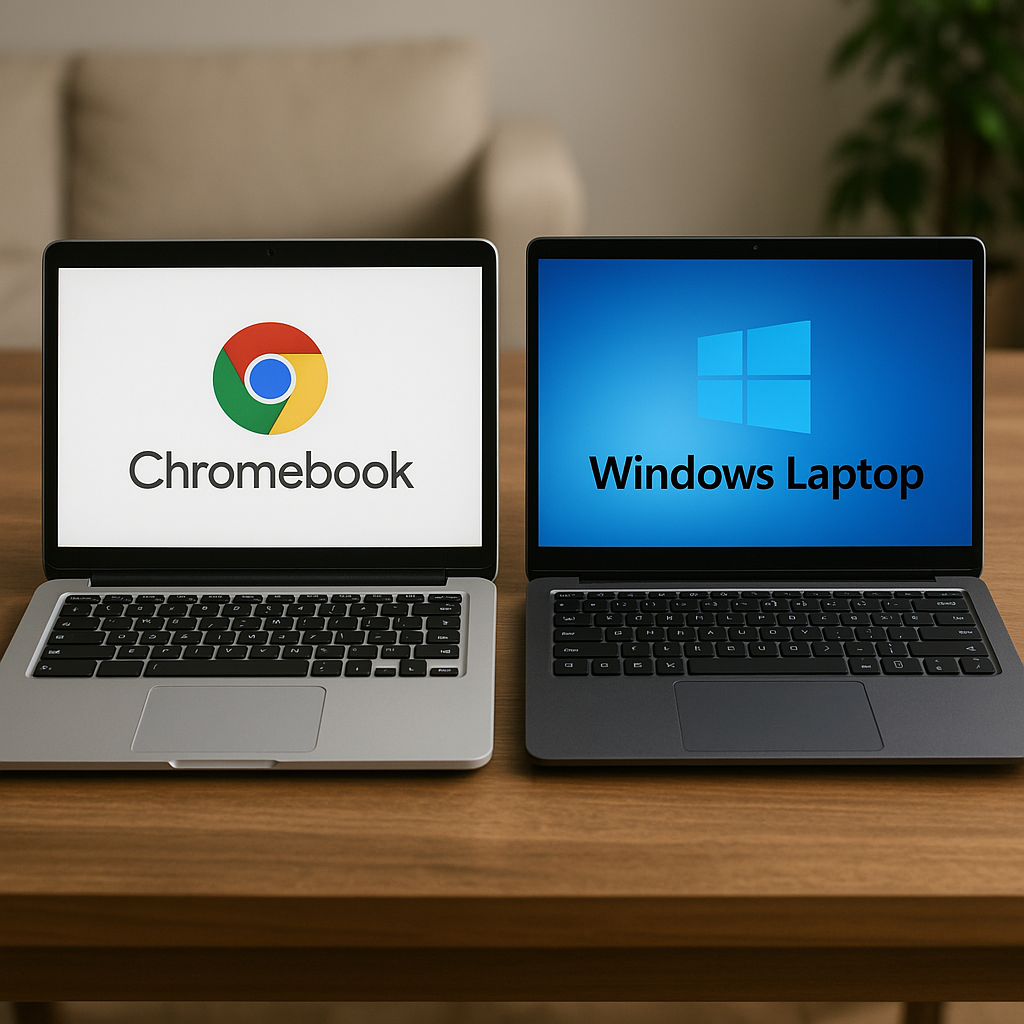
What Are Chromebooks and How Do They Differ? 🤔
Understanding ChromeOS
Chromebooks run on Google’s ChromeOS, a lightweight operating system built around the Chrome web browser. Think of it as a computer designed primarily for web-based activities – browsing the internet, using web applications, and storing files in the cloud.
Traditional Windows Laptops
Windows laptops run Microsoft’s Windows operating system, which has been the dominant desktop platform for decades. Windows offers a full desktop experience with the ability to install traditional software applications directly onto your computer.
Price Comparison: Why Chromebooks Cost Less 💰
Chromebook Pricing
- Budget Range: $200-$400
- Mid-Range: $400-$600
- Premium: $600-$1,200
Windows Laptop Pricing
- Budget Range: $300-$600
- Mid-Range: $600-$1,200
- Premium: $1,200-$3,000+
Why Chromebooks Are Cheaper: Chromebooks cost less because they use simpler hardware components, require less processing power, and don’t need expensive software licenses. The operating system is free, and manufacturers can use lower-cost components since ChromeOS is designed to be lightweight and efficient.
Software Capabilities and Limitations 📱
What Chromebooks Can Do
- Web browsing with excellent Chrome integration
- Google Workspace (Docs, Sheets, Slides) for productivity
- Android apps through the Google Play Store
- Linux applications on compatible models
- Streaming services like Netflix, YouTube, Spotify
- Basic photo editing through web apps
- Video calling via Google Meet, Zoom web versions
What Chromebooks Cannot Do
- Professional software like Adobe Creative Suite, AutoCAD, or advanced video editing programs
- PC gaming beyond Android games and web-based games
- Heavy data processing or complex spreadsheet calculations
- Full Microsoft Office (only web versions available)
- Advanced programming in certain development environments
- Specialized business software that requires Windows
Windows Laptop Advantages
Windows laptops offer unlimited software compatibility, including:
- Professional creative software (Photoshop, Premiere Pro, Illustrator)
- PC gaming with access to Steam, Epic Games Store, and other platforms
- Business applications including full Microsoft Office suite
- Development tools for programmers and software developers
- Specialized industry software for engineering, accounting, and other fields
Internet Dependency: How Much WiFi Do You Need? 🌐
Chromebook Internet Requirements
Chromebooks are designed for online use, though they’re not completely useless offline:
- Heavy internet dependency for most functions
- Limited offline capabilities for basic tasks
- Cloud storage focus means files live online
- Best performance with consistent, fast internet
Windows Laptop Flexibility
Windows laptops work well both online and offline:
- Full functionality without internet connection
- Local file storage doesn’t require internet
- Offline applications work independently
- Better for travel or areas with poor connectivity
Battery Life: Efficiency Champions 🔋
Chromebook Battery Performance
Chromebooks typically excel in battery life:
- 8-12 hours of typical use
- Efficient processors consume less power
- Lightweight OS requires minimal resources
- Instant wake from sleep mode
Windows Laptop Battery Life
Battery life varies significantly:
- 4-8 hours for budget models
- 6-12 hours for premium ultrabooks
- 2-4 hours for gaming laptops
- Power management has improved but still lags behind Chromebooks
Security: Which Platform Is Safer? 🔒
Chromebook Security Advantages
- Automatic updates keep security current
- Sandboxed environment limits malware damage
- Verified boot prevents tampering
- Minimal attack surface due to simple architecture
- Built-in antivirus protection
Windows Security Considerations
- More vulnerable to malware and viruses
- Requires antivirus software for optimal protection
- Frequent security updates needed
- Larger attack surface due to complexity
- Better enterprise security options available
File Storage: Local vs Cloud-First Approach 💾
Chromebook Storage Strategy
- Limited local storage (32GB-128GB typically)
- Cloud-first approach with Google Drive integration
- Automatic backup to cloud services
- Requires internet for file access
- Cost-effective cloud storage plans
Windows Laptop Storage Options
- Larger local storage (256GB-2TB common)
- Full control over file organization
- Offline access to all files
- External storage options readily available
- Mix of local and cloud storage possible
Printing and Peripheral Compatibility 🖨️
Chromebook Limitations
- Google Cloud Print dependency (discontinued)
- Limited printer compatibility without cloud features
- Fewer peripheral options compared to Windows
- USB-C focus on newer models
- Wireless printing works best
Windows Laptop Advantages
- Universal printer support across all manufacturers
- Extensive peripheral compatibility for specialized devices
- Legacy hardware support for older equipment
- Multiple connection options (USB, HDMI, VGA, etc.)
- Professional equipment integration
Gaming Capabilities: Entertainment Options 🎮
Chromebook Gaming
- Android games through Google Play Store
- Web-based games and browser gaming
- Cloud gaming services (Google Stadia was discontinued, but others exist)
- Casual gaming focus
- Limited performance for demanding games
Windows Gaming
- Full PC gaming with Steam, Epic Games Store
- Hardware flexibility for gaming upgrades
- Professional gaming capabilities
- VR gaming support
- Massive game library across all genres
Work and Productivity: Professional Use Cases 💼
Chromebook for Work
Best for:
- Basic office tasks (email, documents, spreadsheets)
- Education environments with Google Workspace
- Remote work with cloud-based tools
- Collaborative projects using Google’s suite
- Budget-conscious businesses with simple needs
Limitations:
- Professional software incompatibility
- Advanced Excel functions not fully supported
- Industry-specific applications unavailable
- Offline work capabilities limited
Windows Laptop for Work
Best for:
- Professional environments requiring specific software
- Creative professionals needing Adobe Creative Suite
- Business applications like advanced Excel, QuickBooks
- Development work across multiple programming languages
- Enterprise environments with Windows domain integration
Educational Use: Students and Learning 📚
Chromebooks in Education
- Affordable for schools and families
- Easy management for IT administrators
- Google Classroom integration
- Collaborative learning tools built-in
- Durability in school environments
- Quick startup and user switching
Windows Laptops for Students
- Software compatibility for specialized courses
- Advanced projects in engineering, design, programming
- Gaming and entertainment options
- Future-proofing for career requirements
- Research capabilities with offline access
Performance Comparison: Speed and Efficiency ⚡
Chromebook Performance
- Fast boot times (8-10 seconds)
- Responsive for web-based tasks
- Efficient multitasking within browser tabs
- Consistent performance over time
- No software bloat issues
Windows Laptop Performance
- Variable performance based on hardware
- Powerful options available for demanding tasks
- Customizable hardware specifications
- Performance degradation possible over time
- Resource-intensive applications supported
Best Use Cases: When Each Makes Sense 🎯
Choose a Chromebook If You:
- Primarily use web browsers for work and entertainment
- Are on a tight budget but need a reliable computer
- Value simplicity and minimal maintenance
- Have consistent internet access at home and work
- Use Google services extensively
- Need excellent battery life for mobile use
- Want automatic updates and security
- Are buying for a child or elderly family member
Choose a Windows Laptop If You:
- Need specific professional software not available on web
- Want to play PC games or use demanding applications
- Require offline capabilities for work or travel
- Work in creative fields requiring Adobe Creative Suite
- Need maximum software compatibility for work
- Want local file storage and control
- Plan to use for 5+ years with evolving needs
- Need peripheral compatibility for specialized equipment
Making Your Decision: Key Questions to Ask 🤷
Before making your final choice, consider these essential questions:
- What’s your primary use case? Daily web browsing or professional software?
- How important is your budget? Can you afford Windows laptop prices?
- Do you have reliable internet? Chromebooks need consistent connectivity
- What software do you absolutely need? Check compatibility carefully
- How tech-savvy are you? Chromebooks are simpler to manage
- Do you need gaming capabilities? Windows offers more options
- How important is battery life? Chromebooks typically last longer
- What’s your storage preference? Local files or cloud-based?
Future-Proofing Your Investment 🔮
Chromebook Longevity
- Automatic updates for 8+ years on newer models
- Simple maintenance requirements
- Consistent performance over time
- Limited upgrade options for hardware
- Evolving capabilities as web apps improve
Windows Laptop Longevity
- Hardware upgrades possible on some models
- Software flexibility as needs change
- Longer useful life for professional applications
- Performance optimization options available
- Broader repair and upgrade ecosystem
Final Recommendations: Making the Right Choice ✅
For Most Users: If you primarily browse the web, use Google services, stream media, and handle basic productivity tasks, a Chromebook offers excellent value, simplicity, and battery life. It’s particularly great for students, casual users, and anyone seeking a low-maintenance computing experience.
For Power Users: If you need specific professional software, want gaming capabilities, require offline functionality, or work in creative fields, a Windows laptop provides the flexibility and power you need. While more expensive, it offers greater long-term versatility.
For Budget-Conscious Buyers: Chromebooks provide incredible value for basic computing needs. You can get a capable device for under $300 that handles most daily tasks efficiently.
For Professional Users: Windows laptops remain the standard for most business environments, offering compatibility with enterprise software, advanced productivity tools, and specialized applications.
Conclusion: Your Perfect Computing Companion 🎉
The choice between a Chromebook and Windows laptop ultimately depends on your specific needs, budget, and computing habits. Chromebooks excel at providing affordable, simple, and efficient computing for web-based tasks, while Windows laptops offer unlimited software compatibility and professional capabilities.
Consider your primary use cases, budget constraints, and future needs when making your decision. Both platforms have evolved significantly and continue to improve, so you can’t go wrong with either choice as long as it matches your requirements.
Remember that the best computer is the one you’ll actually use and enjoy. Whether you choose the simplicity of a Chromebook or the versatility of a Windows laptop, you’re making an investment in your productivity and digital lifestyle.
Take time to research specific models, read reviews, and perhaps try both platforms in person before making your final decision. Your perfect computing companion is out there – now you have the knowledge to find it! 🚀