
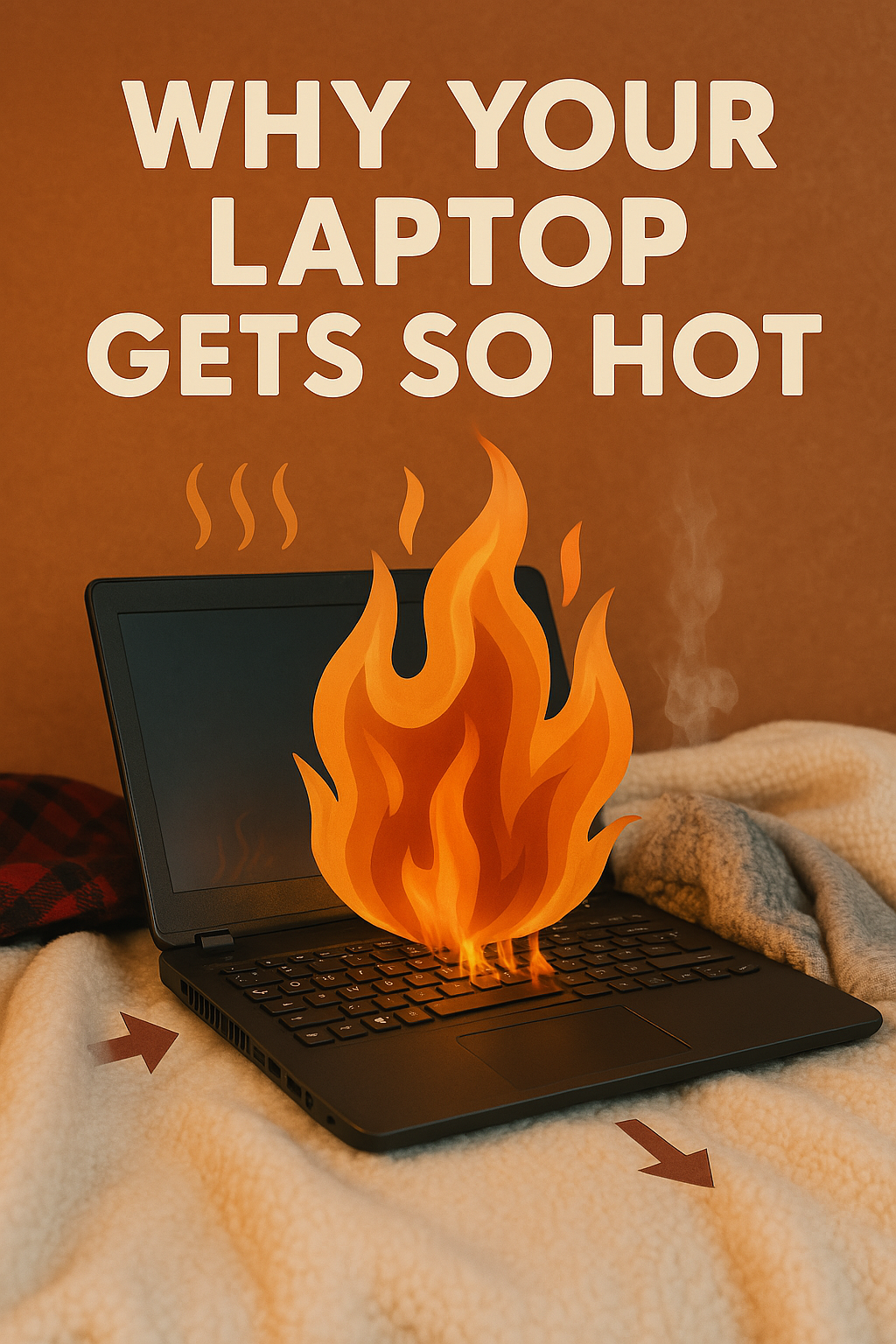
7 Simple Ways to Cool It Down 🔥
Is your laptop burning up your legs? Does it sound like a jet engine taking off every time you open multiple tabs? You’re not alone. Laptop overheating is one of the most common problems every computer user faces, and it’s more serious than you might think.
When your laptop gets hot, it’s not just uncomfortable – it’s actually crying for help. Overheating can slow down your computer, damage internal components, and even cause permanent hardware failure. The good news? Most overheating issues can be fixed with simple solutions that don’t require any technical expertise.
Why Do Laptops Get So Hot? Understanding the Root Causes 🌡️
Before we dive into solutions, let’s understand why laptops overheat in the first place. Unlike desktop computers that have plenty of space for air circulation, laptops cram powerful components into a tiny space. This creates a perfect storm for heat buildup.
The Internal Heat Generators
Your laptop’s CPU (processor) and GPU (graphics card) are the main heat producers. When you’re running demanding applications like video editing software, games, or even having too many browser tabs open, these components work harder and generate more heat. It’s like asking someone to run a marathon while wearing a winter coat – they’re going to overheat quickly.
The hard drive, RAM, and battery also contribute to heat generation, especially when your laptop is working at full capacity. Modern laptops are designed to handle this heat, but various factors can overwhelm their cooling systems.
Why Modern Laptops Struggle More
Today’s laptops are thinner and more powerful than ever before. While this makes them more portable and attractive, it also means less space for proper ventilation. Manufacturers are essentially trying to fit a race car engine into a compact car’s body – impressive engineering, but it comes with thermal challenges.
The Hidden Dangers of Laptop Overheating ⚠️
Many people ignore laptop overheating, thinking it’s just a minor annoyance. This mindset can lead to expensive consequences:
Performance Throttling: When your laptop gets too hot, it automatically reduces its performance to cool down. This means slower processing, lagging applications, and frustrating user experience.
Hardware Damage: Excessive heat can permanently damage your laptop’s motherboard, processor, and other components. What starts as a $20 cooling pad solution can turn into a $500+ repair bill.
Shortened Lifespan: Heat is the enemy of electronic components. A laptop that runs hot will have a significantly shorter lifespan than one that stays cool.
Data Loss: Overheating can cause sudden shutdowns, potentially leading to unsaved work loss or file corruption.
7 Simple Ways to Cool Down Your Laptop 🧊
Now for the solutions you’ve been waiting for. These methods are arranged from easiest to implement, so you can start seeing results immediately.
1. Fix Your Laptop Placement – The Foundation of Cool Computing 💻
The Problem: Your couch, bed, or lap might be the biggest culprit behind your laptop’s overheating. Soft surfaces block air vents and trap heat like a blanket.
The Solution: Always use your laptop on hard, flat surfaces. Your laptop’s vents are typically located on the bottom and sides, and they need unrestricted airflow to function properly.
Best Practices:
- Use a desk or table whenever possible
- If you must use it on your lap, place a laptop tray or hard book underneath
- Avoid beds, couches, carpets, and other soft surfaces
- Keep at least 6 inches of clearance around your laptop’s vents
Quick Test: Hold your hand near your laptop’s vents while it’s running. You should feel warm air flowing out. If you don’t, something is blocking the airflow.
2. Clean Out the Dust – Your Laptop’s Breathing Treatment 🌪️
The Problem: Dust accumulation is like giving your laptop asthma. Even a thin layer of dust can reduce cooling efficiency by up to 40%.
The Solution: Regular cleaning can dramatically improve your laptop’s temperature. You don’t need to disassemble anything – external cleaning is often enough.
Step-by-Step Cleaning Process:
- Power down your laptop completely and unplug it
- Locate the vents – usually found on the sides and bottom
- Use compressed air to blow out dust from vents (hold the can upright)
- Clean the keyboard and screen to prevent dust from getting sucked into vents
- Wipe down the exterior with a slightly damp microfiber cloth
Pro Tips:
- Never use a vacuum cleaner on your laptop (static electricity can damage components)
- Clean your laptop every 3-6 months, or monthly if you have pets
- Consider professional cleaning if you haven’t cleaned it in over a year
3. Control Your Room Temperature – Environmental Cooling 🌡️
The Problem: Your laptop works harder to cool itself in hot environments. A room that’s 80°F (27°C) puts significantly more stress on your laptop’s cooling system than a room at 70°F (21°C).
The Solution: Simple environmental adjustments can reduce your laptop’s operating temperature by 10-15 degrees.
Cooling Strategies:
- Use air conditioning or fans to keep room temperature between 68-72°F (20-22°C)
- Avoid direct sunlight on your laptop screen and body
- Position yourself near air vents when working in warm rooms
- Take breaks during hot weather to let your laptop cool down
Summer Survival Tips:
- Work during cooler parts of the day when possible
- Use a desk fan pointed at your laptop (not directly at the vents)
- Consider working in naturally cooler areas like basements or north-facing rooms
4. Tame Resource-Hungry Programs – Software Heat Management 💾
The Problem: Some programs are like energy vampires, constantly consuming CPU power even when you’re not actively using them. These background processes generate unnecessary heat.
The Solution: Identify and manage programs that are overworking your laptop.
Windows Users:
- Press Ctrl + Shift + Esc to open Task Manager
- Click the “Processes” tab
- Sort by “CPU” to see which programs are using the most processing power
- End unnecessary high-CPU processes
Mac Users:
- Press Command + Space and type “Activity Monitor”
- Click the “CPU” tab
- Identify high-usage applications
- Select and “Force Quit” unnecessary processes
Common Heat-Generating Culprits:
- Multiple browser tabs (especially video streaming sites)
- Antivirus software running full system scans
- Gaming applications running in the background
- Video editing software left open
- Cryptocurrency mining software (intentionally or malware)
5. Invest in a Quality Cooling Pad – External Cooling Reinforcement ❄️
The Problem: Sometimes your laptop’s built-in cooling system needs backup, especially during intensive tasks or in hot weather.
The Solution: A good cooling pad can reduce your laptop’s temperature by 5-15 degrees, depending on the model and your laptop’s design.
What to Look For:
- Multiple fans (2-6 fans are optimal)
- Adjustable fan speeds for different cooling needs
- Proper size compatibility with your laptop
- USB-powered for convenience
- Adjustable height for ergonomic benefits
Do Cooling Pads Actually Work? Yes, but with caveats. Cooling pads work best when:
- Your laptop’s intake vents are on the bottom
- You’re using the pad on a hard, flat surface
- The pad’s fan placement aligns with your laptop’s vents
- You’re running demanding applications
Budget vs. Premium Options:
- Budget pads ($15-30): Basic cooling, simple design, adequate for light usage
- Premium pads ($50-100): Better build quality, more fans, adjustable settings, RGB lighting
6. Optimize Power Settings – Internal Heat Reduction ⚡
The Problem: Your laptop might be working harder than necessary due to power settings optimized for maximum performance rather than efficiency.
The Solution: Adjust your power settings to balance performance with heat generation.
Windows Power Settings:
- Click the battery icon in the system tray
- Move the slider toward “Better battery” or “Battery saver”
- For advanced settings: Control Panel → Power Options → Change plan settings
- Set “Maximum processor state” to 80-90% instead of 100%
Mac Energy Settings:
- Apple menu → System Preferences → Energy Saver
- Enable “Automatic graphics switching”
- Turn off “Prevent computer from sleeping”
- Reduce screen brightness when not needed
Additional Heat-Reducing Settings:
- Lower screen brightness (high brightness generates heat)
- Disable keyboard backlighting when not needed
- Turn off Bluetooth and WiFi when not in use
- Enable sleep mode for short breaks
7. Monitor and Maintain Your Battery – Heat Source Management 🔋
The Problem: Your laptop’s battery generates significant heat, especially while charging or when it’s degraded.
The Solution: Proper battery management can reduce overall system temperature.
Battery Cooling Strategies:
- Avoid using your laptop while charging when possible
- Remove the battery if you’re using it plugged in for extended periods (only if removable)
- Don’t charge to 100% regularly – keeping it between 20-80% reduces heat generation
- Use original chargers – third-party chargers can generate excess heat
Signs Your Battery Needs Attention:
- Laptop gets significantly hotter while charging
- Battery drains quickly
- Laptop shuts down unexpectedly
- Battery physically swells or feels very hot
Warning Signs: When to Worry About Laptop Temperature 🚨
Not all laptop heat is created equal. Here’s how to distinguish between normal warmth and dangerous overheating:
Normal Temperature Ranges
- Idle: 30-50°C (86-122°F)
- Light use: 50-60°C (122-140°F)
- Heavy use: 60-70°C (140-158°F)
- Maximum safe: 80-85°C (176-185°F)
Danger Zone Indicators
- Temperature above 85°C (185°F) consistently
- Sudden shutdowns during normal use
- Extremely loud fan noise that doesn’t decrease
- Physical discomfort when touching the laptop
- Performance issues during simple tasks
Understanding Fan Noise – What Your Laptop is Telling You 🔊
Your laptop’s fan is like a warning system. Different sounds indicate different issues:
Quiet Humming: Normal operation – your laptop is managing heat effectively
Loud but Consistent: High workload – check what programs are running
Intermittent Loud Bursts: Normal response to temporary high CPU usage
Constant Loud Noise: Potential overheating – implement cooling solutions immediately
Grinding or Clicking: Mechanical problem – may need professional repair
When Charging Makes Everything Worse 🔌
Many users notice their laptop gets significantly hotter while charging. This is normal but can be managed:
Why This Happens:
- Battery charging generates heat
- Power management systems work harder
- You’re often using the laptop while charging
Solutions:
- Charge during breaks when you’re not using the laptop
- Use power-saving modes while charging
- Position the charging port away from other heat sources
- Ensure proper ventilation around the charging area
Professional Help: When DIY Solutions Aren’t Enough 🔧
Sometimes laptop overheating indicates serious hardware problems that require professional attention:
Signs You Need Professional Help:
- Overheating persists after trying all solutions
- Physical damage to vents or fans
- Laptop randomly shuts down even when cool
- Burning smell from the laptop
- Laptop is very old (3+ years) and has never been professionally cleaned
What Professionals Can Do:
- Deep internal cleaning with specialized tools
- Thermal paste replacement on CPU and GPU
- Fan replacement if fans are damaged
- Hardware diagnostics to identify failing components
Prevention: Keeping Your Laptop Cool Long-Term 🛡️
Prevention is always better than cure. Here’s how to maintain optimal laptop temperatures:
Daily Habits
- Use hard surfaces for laptop placement
- Close unnecessary programs when finished
- Take regular breaks to let your laptop rest
- Keep your workspace clean and dust-free
Weekly Maintenance
- Clean exterior surfaces with appropriate cleaners
- Check for software updates that might improve efficiency
- Review running programs and uninstall unused applications
- Monitor temperatures using built-in tools or apps
Monthly Deep Care
- Compressed air cleaning of vents and keyboard
- Battery calibration if supported by your laptop
- System optimization to remove temporary files
- Professional assessment if you notice any issues
The Bottom Line: Cool Laptops Last Longer 💯
Laptop overheating isn’t just an inconvenience – it’s a threat to your device’s longevity and your productivity. The seven solutions outlined above can dramatically improve your laptop’s thermal performance without requiring technical expertise or expensive equipment.
Remember, the key to effective laptop cooling is consistency. It’s better to implement simple solutions regularly than to ignore the problem until it becomes serious. Your laptop will thank you with better performance, longer life, and quieter operation.
Start with the easiest solutions like proper placement and cleaning, then gradually implement the other strategies based on your specific needs. Most users see significant improvement just from fixing their laptop placement and cleaning out dust.
Take Action Today: Choose one or two solutions from this list and implement them this week. Your laptop’s temperature will improve, and you’ll avoid the frustration and expense of dealing with heat-related hardware failures.
Your laptop doesn’t have to sound like a jet engine or burn your legs. With these simple cooling strategies, you can enjoy comfortable, efficient computing year-round. Cool laptops aren’t just more comfortable to use – they’re more reliable, faster, and last significantly longer than their overheated counterparts.
Have you tried any of these cooling solutions? Share your experience in the comments below and help other laptop users keep their devices running cool and efficient! 🌟