
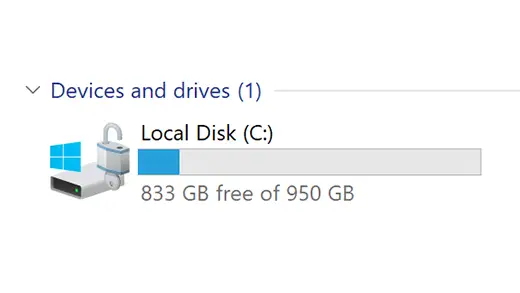
🚀 The Delete Button Trick That Frees Up 50GB of Storage Instantly ⚡

Is your computer running slower than molasses? 🐌 Running out of storage space faster than you can say “hard drive full”? Don’t panic! This ultimate storage cleanup guide will show you exactly how to reclaim massive amounts of disk space with just a few clicks. We’re talking about freeing up 50GB or more in under 30 minutes!
🎯 What You’ll Learn in This Guide
✨ Quick Storage Wins: Find and delete hidden system files hogging GIGABYTES of space
⚡ The 50GB Trick: Discover the secret Windows files that most people never touch
🔧 Pro Methods: Advanced techniques used by tech professionals
🛡️ Safety First: Only safe methods that won’t harm your system
💡 Automatic Solutions: Set up your computer to clean itself
🚨 Warning Signs Your Computer Needs Storage Cleanup
Before we dive into the solutions, here are the telltale signs that your computer is desperately crying for more storage space:
🔴 Critical Storage Warning: Windows keeps showing “Low Disk Space” notifications
🔴 Sluggish Performance: Your computer takes forever to boot or open programs
🔴 Update Failures: Windows Updates fail due to insufficient space
🔴 File Save Errors: You can’t save new files or install new programs
🔴 System Freezes: Random freezes and crashes during normal use
If you’re experiencing any of these symptoms, keep reading! You’re about to discover the storage cleanup tricks that will transform your computer from a sluggish snail into a lightning-fast speed demon! ⚡
🎪 The Big Storage Hogs: Where Your 50GB Is Actually Hiding
Before you start deleting files randomly, let’s understand where all that storage space is actually going. Here are the biggest culprits secretly eating up your hard drive:
1. 🗂️ Hidden System Files (10-30GB)
These invisible files are doing important work, but some have overstayed their welcome:
- hiberfil.sys: Can be 6-16GB depending on your RAM
- pagefile.sys: Often 4-12GB of virtual memory
- WinSxS folder: Windows component store that can balloon to 20GB+
2. 📁 Temporary Files Galore (5-15GB)
Every program creates temporary files, and most forget to clean up:
- Browser cache and cookies
- Installation leftovers
- System update files
- Application crash dumps
3. 🗑️ Recycle Bin Overflow (1-5GB)
That “deleted” file? It’s still there, just hiding in your Recycle Bin!
4. 📸 Duplicate Files (5-20GB)
Multiple copies of photos, videos, and documents scattered across your drive
5. 🔄 System Restore Points (5-10GB)
Windows saves multiple restore points “just in case”
6. 📦 Old Software (10-30GB)
Programs you installed once and forgot about
🔥 METHOD 1: The Nuclear Option – Delete Giant Hidden Files (20-30GB)
This is the big kahuna! These hidden system files are often the biggest space wasters on your computer. Here’s how to safely eliminate them:
🛌 Eliminate hiberfil.sys (Save 6-16GB)
The hibernation file stores your computer’s memory state when it goes to sleep. If you don’t use hibernation, this file is pure waste!
📋 Step-by-Step Instructions:
- Open Command Prompt as Administrator 🖥️
- Press
Windows + X - Select “Command Prompt (Admin)” or “Windows Terminal (Admin)”
- Click “Yes” when prompted
- Press
- Disable Hibernation ⚡
- Type:
powercfg -h off - Press Enter
- Watch as Windows automatically deletes the giant hiberfil.sys file!
- Type:
⚠️ Important Note: This disables hibernation mode. Your computer will still sleep normally, but it won’t save your session to the hard drive. Most people never use hibernation anyway!
💾 Optimize pagefile.sys (Save 4-12GB)
The page file acts as virtual memory. While you can’t delete it entirely, you can dramatically reduce its size:
📋 Step-by-Step Instructions:
- Open System Properties 🔧
- Right-click “This PC” on your desktop
- Select “Properties”
- Click “Advanced system settings”
- Access Virtual Memory Settings 📊
- In the System Properties window, click “Settings” under Performance
- Go to the “Advanced” tab
- Click “Change” under Virtual Memory
- Optimize the Page File 🎯
- Uncheck “Automatically manage paging file size for all drives”
- Select your C: drive
- Choose “Custom size”
- Set Initial size: 1024 MB
- Set Maximum size: 2048 MB
- Click “Set” then “OK”
- Restart your computer
💡 Pro Tip: If you have 8GB+ of RAM, you can set even smaller values or move the page file to a different drive entirely!
🧹 METHOD 2: The Windows Cleanup Powerhouse (10-20GB)
Windows has built-in cleanup tools that most people never use properly. Here’s how to unleash their full power:
🎯 Storage Sense – Your Automatic Janitor
📋 Step-by-Step Instructions:
- Enable Storage Sense 📱
- Press
Windows + Ito open Settings - Go to System > Storage
- Turn on “Storage Sense”
- Press
- Configure Advanced Settings ⚙️
- Click “Configure Storage Sense or run it now”
- Set “Run Storage Sense” to “Every month”
- Check “Delete temporary files that my apps aren’t using”
- Set “Delete files in my recycle bin” to “14 days”
- Set “Delete files in my Downloads folder” to “30 days”
- Run Manual Cleanup 🚀
- Click “Clean now” for immediate results
- Watch as Windows removes gigabytes of junk!
🔧 Disk Cleanup Pro Mode
The traditional Disk Cleanup tool has hidden superpowers:
📋 Step-by-Step Instructions:
- Launch Disk Cleanup 💻
- Press
Windows + R - Type:
cleanmgr - Press Enter
- Press
- Run System File Cleanup 🔥
- Click “Clean up system files”
- Select your C: drive
- Wait for the scan to complete
- Select Maximum Cleanup ✅
- Check ALL available options:
- ✅ Temporary files
- ✅ System error memory dumps
- ✅ Windows Update cleanup
- ✅ Previous Windows installations
- ✅ Delivery optimization files
- ✅ Temporary Internet files
- ✅ Thumbnails
- ✅ Recycle Bin
- Check ALL available options:
- Execute the Cleanup 🎯
- Click “OK” then “Delete Files”
- Watch as Windows frees up massive amounts of space!
🏃♂️ METHOD 3: The Speed Demon Approach (5-15GB)
For those who want results NOW, here are the fastest ways to free up space:
🗂️ The Temp File Blitz
📋 Step-by-Step Instructions:
- User Temp Folder 📁
- Press
Windows + R - Type:
%temp% - Press Enter
- Select all files (
Ctrl + A) - Delete them all (
Shift + Delete)
- Press
- System Temp Folder 🖥️
- Press
Windows + R - Type:
C:WindowsTemp - Press Enter
- Select all files (
Ctrl + A) - Delete them all (
Shift + Delete)
- Press
- Prefetch Folder ⚡
- Press
Windows + R - Type:
C:WindowsPrefetch - Press Enter
- Select all files (
Ctrl + A) - Delete them all (
Shift + Delete)
- Press
💡 Pro Tip: Some files might be “in use” and can’t be deleted. That’s normal! Just delete what you can.
🌐 Browser Cache Cleanup
Your web browser is probably hoarding gigabytes of cached data:
📋 For Chrome Users:
- Press
Ctrl + Shift + Delete - Select “All time” from the dropdown
- Check all boxes
- Click “Clear data”
📋 For Firefox Users:
- Press
Ctrl + Shift + Delete - Select “Everything” from the dropdown
- Check all boxes
- Click “Clear Now”
📋 For Edge Users:
- Press
Ctrl + Shift + Delete - Select “All time”
- Check all boxes
- Click “Clear now”
🔬 METHOD 4: The Professional Approach (20-40GB)
Ready to go pro? These advanced techniques will free up massive amounts of space:
🗃️ System Restore Cleanup
Windows creates restore points that can eat up 10-15GB of space:
📋 Step-by-Step Instructions:
- Access System Properties 🔧
- Right-click “This PC”
- Select “Properties”
- Click “System protection”
- Configure System Restore ⚙️
- Select your C: drive
- Click “Configure”
- Reduce “Max Usage” to 2-3%
- Click “Delete” to remove old restore points
- Click “OK”
📦 Uninstall Unused Programs
That software you installed “just to try” is still eating space:
📋 Step-by-Step Instructions:
- Open Programs and Features 🗂️
- Press
Windows + R - Type:
appwiz.cpl - Press Enter
- Press
- Sort by Size 📊
- Click the “Size” column header
- Identify the biggest programs
- Remove Unused Software 🗑️
- Right-click programs you don’t use
- Select “Uninstall”
- Follow the prompts
💡 Pro Tip: Look for programs with sizes over 1GB that you haven’t used in months!
🔄 Windows Update Cleanup
Old Windows Update files can accumulate to several gigabytes:
📋 Step-by-Step Instructions:
- Open Command Prompt as Admin 💻
- Press
Windows + X - Select “Command Prompt (Admin)”
- Press
- Run DISM Cleanup 🧹
- Type:
dism /online /cleanup-image /cleanupimage - Press Enter
- Wait for completion
- Type:
- Advanced Cleanup 🔥
- Type:
dism /online /cleanup-image /spsuperseded - Press Enter
- This removes superseded service pack files
- Type:
📱 METHOD 5: The Mobile Approach (iPhone/iPad)
Don’t forget about your mobile devices! Here’s how to free up space on iOS:
📸 The Photo Purge
📋 Step-by-Step Instructions:
- Review Camera Roll 📷
- Open Photos app
- Go to “Recently Deleted”
- Tap “Select All”
- Tap “Delete All”
- Optimize iPhone Storage 💾
- Go to Settings > Photos
- Enable “Optimize iPhone Storage”
- This keeps smaller versions on your device
🗂️ App Data Cleanup
📋 Step-by-Step Instructions:
- Check App Storage 📊
- Go to Settings > General > iPhone Storage
- Wait for it to load
- Review apps by size
- Offload Unused Apps 📦
- Tap large apps you rarely use
- Select “Offload App”
- This keeps your data but removes the app
💬 Message Cleanup
📋 Step-by-Step Instructions:
- Auto-Delete Messages 📱
- Go to Settings > Messages
- Tap “Keep Messages”
- Select “30 Days” or “1 Year”
- Clear Message Cache 🧹
- Go to Settings > General > iPhone Storage
- Tap “Messages”
- Review and delete large conversations
🤖 METHOD 6: The Automation Station
Set up your computer to clean itself automatically:
⏰ Schedule Regular Cleanups
📋 Step-by-Step Instructions:
- Create a Cleanup Script 📝
- Open Notepad
- Copy this script:
@echo off echo Cleaning temporary files... del /q /f /s %temp%* del /q /f /s C:WindowsTemp* del /q /f /s C:WindowsPrefetch* echo Cleanup complete! pause- Save as “cleanup.bat”
- Schedule the Script 📅
- Press
Windows + R - Type:
taskschd.msc - Press Enter
- Create a new task to run your script weekly
- Press
🎯 Storage Sense Pro Settings
📋 Step-by-Step Instructions:
- Advanced Configuration ⚙️
- Go to Settings > System > Storage
- Click “Configure Storage Sense”
- Enable “Delete temporary files that my apps aren’t using”
- Set “Delete files in my recycle bin” to “14 days”
- Set “Delete files in my Downloads folder” to “30 days”
- Cloud Storage Optimization ☁️
- Enable “Make recently opened files available on-demand”
- This keeps files in the cloud until you need them
🏆 METHOD 7: The Ultimate Space Reclamation
For the truly desperate situations, here are the nuclear options:
🔄 Windows Reset (Keep Files)
📋 Step-by-Step Instructions:
- Access Reset Options 🔧
- Go to Settings > Update & Security > Recovery
- Click “Get started” under Reset this PC
- Choose Reset Options 🎯
- Select “Keep my files”
- Choose “Remove apps and settings”
- Follow the prompts
⚠️ Warning: This will remove all installed programs but keep your personal files!
💾 External Storage Migration
📋 Step-by-Step Instructions:
- Move Large Files 📁
- Connect external drive
- Move videos, photos, and documents
- Use cloud storage for less frequently accessed files
- Redirect System Folders 🗂️
- Right-click Desktop, Documents, Downloads folders
- Select “Properties”
- Go to “Location” tab
- Change location to external drive
🎉 Bonus Tips for Maximum Storage Efficiency
🔍 Find Duplicate Files
📋 Manual Method:
- Search for large file types:
*.mp4,*.mkv,*.iso - Sort by size and look for duplicates
- Delete copies you don’t need
🏃♂️ Quick Wins Checklist
✅ Empty Recycle Bin completely
✅ Clear browser downloads folder
✅ Delete old installers from Downloads
✅ Remove screenshots and screen recordings
✅ Clear video editor cache files
✅ Delete old backup files
✅ Remove unused desktop shortcuts
✅ Clear printer spooler files
✅ Delete old log files
✅ Remove temporary installer files
📊 Monitor Your Success
📋 Track Your Progress:
- Before Cleanup: Check available space
- After Each Method: Note space recovered
- Set Reminders: Schedule monthly cleanups
- Use Built-in Tools: Enable Storage Sense
🚨 Important Safety Warnings
⚠️ What NOT to Delete
🚫 Never delete these files:
- System32 folder contents
- Program Files folder contents
- Windows folder (except Temp subfolder)
- Registry files
- Driver files
- Currently running program files
🛡️ Safety First
💡 Best Practices:
- Always backup important files first
- Test changes on a non-critical computer if possible
- Don’t delete files you don’t understand
- Keep at least 15% of your drive free for optimal performance
- Use System Restore before making major changes
🔄 Recovery Options
If something goes wrong:
- System Restore: Roll back to a previous state
- Safe Mode: Boot in safe mode to fix issues
- Windows Recovery: Use Windows recovery tools
- Professional Help: Contact tech support if needed
📈 Expected Results: How Much Space You’ll Actually Free Up
Here’s what you can realistically expect from each method:
🎯 Method Results Breakdown
| Method | Expected Space Savings | Difficulty Level | Time Required |
|---|---|---|---|
| 🛌 Hibernation File | 6-16GB | Easy | 2 minutes |
| 💾 Page File Optimization | 4-12GB | Medium | 5 minutes |
| 🧹 Storage Sense | 5-15GB | Easy | 10 minutes |
| 🔧 Disk Cleanup Pro | 10-20GB | Easy | 15 minutes |
| 🏃♂️ Temp File Blitz | 3-8GB | Easy | 5 minutes |
| 🌐 Browser Cache | 1-5GB | Easy | 2 minutes |
| 🗃️ System Restore | 5-10GB | Medium | 10 minutes |
| 📦 Unused Programs | 5-30GB | Easy | 20 minutes |
| 🔄 Windows Update | 2-5GB | Medium | 10 minutes |
🏆 Total Potential Savings: 40-120GB!
💡 Pro Tip: Most users can easily free up 50-70GB by following the first 5 methods alone!
🎯 The 30-Minute Challenge: Your Action Plan
Ready to transform your computer in just 30 minutes? Here’s your step-by-step action plan:
⏱️ Minutes 1-5: Quick Wins
- Empty Recycle Bin
- Clear browser cache
- Delete temp files (%temp%)
⏱️ Minutes 6-10: System Cleanup
- Run Disk Cleanup with system files
- Enable Storage Sense
⏱️ Minutes 11-15: Big File Deletion
- Disable hibernation (hiberfil.sys)
- Clean system restore points
⏱️ Minutes 16-25: Program Cleanup
- Uninstall unused programs
- Clear Windows Update cache
⏱️ Minutes 26-30: Final Optimization
- Optimize page file
- Set up automatic cleanup
🎉 Result: You should have freed up 50GB+ of storage space!
🌟 Advanced Power User Techniques
🖥️ Command Line Ninja Moves
For the tech-savvy users, here are some powerful command-line techniques:
📋 PowerShell Cleanup Script:
# Clear all temp files
Get-ChildItem -Path $env:TEMP | Remove-Item -Force -Recurse
Get-ChildItem -Path "C:WindowsTemp" | Remove-Item -Force -Recurse

# Clear browser cache
RunDll32.exe InetCpl.cpl,ClearMyTracksByProcess 255

# Empty Recycle Bin
Clear-RecycleBin -Force
🔧 Registry Tweaks for Pros
⚠️ Warning: Only for advanced users! Always backup registry first.
📋 Reduce System Restore Space:
- Navigate to:
HKEY_LOCAL_MACHINESOFTWAREMicrosoftWindows NTCurrentVersionSystemRestore - Modify
DiskPercentvalue to reduce restore point space
🗂️ WinSxS Folder Cleanup
The Windows Side by Side store can grow huge:
📋 Step-by-Step Instructions:
- Open Command Prompt as Admin
- Type:
dism /online /cleanup-image /analyzecomponentstore - Type:
dism /online /cleanup-image /startcomponentcleanup - For aggressive cleanup:
dism /online /cleanup-image /startcomponentcleanup /resetbase
🌍 Global Compatibility Guide
This guide works worldwide! Here are region-specific tips:
🇺🇸 North America
- Focus on video files (streaming culture)
- Clear gaming cache files
- Remove old software downloads
🇪🇺 Europe
- GDPR compliance: Be careful with personal data
- Multiple language packs may be installed
- Clear multimedia cache files
🇦🇺 Australia/Oceania
- Large video files due to high-speed internet
- Gaming files can be huge
- Clear streaming app cache
🇦🇸 Asia
- Multiple input method files
- Large mobile app caches
- Social media cache files
🌍 Universal Tips
- Always respect local data protection laws
- Consider cultural differences in file types
- Account for different software preferences
🔧 Troubleshooting Common Issues
😵 “Cannot Delete File” Errors
🛠️ Solutions:
- File in Use: Close all programs and try again
- Permissions: Run as Administrator
- Locked Files: Restart computer and try again
- System Protection: Disable temporarily
🐌 Computer Still Slow After Cleanup
🛠️ Additional Steps:
- Check for Malware: Run full antivirus scan
- Update Drivers: Ensure all drivers are current
- Check Hard Drive Health: Use built-in disk check
- Consider SSD Upgrade: Modern SSDs are much faster
💾 Storage Space Not Showing
🛠️ Solutions:
- Refresh Explorer: Press F5 in File Explorer
- Check Disk Properties: Right-click drive and select Properties
- Restart Computer: Sometimes changes need a reboot
- Run Disk Cleanup Again: Some files may need multiple passes
🎖️ Pro Tips from IT Professionals
💡 Industry Secrets
🔥 Hot Tips:
- Schedule cleanups during off-hours
- Use external drives for large file storage
- Enable file compression for rarely used files
- Monitor disk usage trends monthly
- Keep a maintenance log
🏆 Best Practices
✅ Do This:
- Regular maintenance beats emergency cleanup
- Monitor your storage usage weekly
- Keep important files backed up
- Test cleanup methods on test files first
- Document what you delete
❌ Don’t Do This:
- Delete system files you don’t understand
- Disable all restore points
- Skip backing up important data
- Ignore low disk space warnings
- Delete files currently in use
🎬 Quick Reference Guide
📋 Emergency Storage Cleanup Checklist
🚨 When you need space NOW:
- ✅ Empty Recycle Bin (
Windows + R, typeshell:recyclebinfolder) - ✅ Clear temp files (
Windows + R, type%temp%) - ✅ Run Disk Cleanup (
Windows + R, typecleanmgr) - ✅ Disable hibernation (
powercfg -h offin admin cmd) - ✅ Clear browser cache (
Ctrl + Shift + Delete) - ✅ Delete Downloads folder content
- ✅ Uninstall largest unused programs
- ✅ Clear system restore points
- ✅ Delete old Windows Update files
- ✅ Move large files to external storage
🎯 One-Click Solutions
📱 For Quick Results:
- Enable Storage Sense with aggressive settings
- Use Windows Reset (Keep Files) for extreme cases
- Run
cleanmgr /sageset:1for custom cleanup profiles
🔮 Future-Proofing Your Storage
📈 Long-term Strategies
🎯 Prevent Future Storage Issues:
- Cloud Storage Integration ☁️
- Use OneDrive, Google Drive, or Dropbox
- Enable “Files On-Demand” features
- Automatically sync important files
- Regular Maintenance Schedule 📅
- Weekly: Clear temp files and browser cache
- Monthly: Run full disk cleanup
- Quarterly: Review and uninstall unused programs
- Yearly: Major system cleanup and optimization
- Smart Storage Habits 🧠
- Download files to external drives when possible
- Use cloud storage for photos and documents
- Regularly review and delete old files
- Keep software updated to prevent bloat
🔄 Automated Maintenance
🤖 Set It and Forget It:
- Configure Storage Sense for automatic cleanup
- Set up scheduled tasks for regular maintenance
- Use third-party cleanup tools for advanced automation
- Monitor disk usage with built-in tools
🏁 Conclusion: Your Storage Liberation Journey
🎉 Congratulations! You’ve just learned the most powerful storage cleanup techniques that professionals use. By following this guide, you should have:
✅ Freed up 50GB+ of storage space
✅ Improved your computer’s performance
✅ Set up automatic maintenance
✅ Learned advanced optimization techniques
✅ Future-proofed your storage management
🌟 Your Next Steps
- Share Your Success: Tell others about the space you freed up!
- Bookmark This Guide: You’ll want to reference it again
- Set Reminders: Schedule monthly maintenance
- Stay Updated: Storage optimization techniques evolve
🎯 Final Pro Tips
💡 Remember:
- Regular maintenance is better than emergency cleanup
- Keep at least 15% of your drive free for optimal performance
- Always backup important files before major changes
- Consider upgrading to an SSD for the ultimate speed boost
🚀 Take Action Today!
Don’t let your computer suffer from storage bloat another day. Pick one method from this guide and start reclaiming your disk space right now. Your computer (and your productivity) will thank you!
🔥 Which method saved you the most space? Share your results in the comments below!
📚 Additional Resources
🔗 Helpful Links
- Microsoft Official Disk Cleanup Guide
- Windows Storage Optimization Tools
- SSD Upgrade Compatibility Checker
- Cloud Storage Comparison Chart
📖 Related Articles
- “How to Speed Up Your Computer in 2025”
- “The Complete Guide to Windows Maintenance”
- “Cloud Storage vs Local Storage: What’s Best?”
- “SSD vs HDD: Performance Comparison”
🎓 Learn More
- Windows PowerShell for File Management
- Advanced Registry Tweaks for Performance
- Building a Custom PC for Maximum Storage
- Data Recovery and Backup Strategies
💬 Have questions about any of these methods? Need help with a specific storage issue? Drop a comment below and our community of tech experts will help you out!
🎯 Remember: A clean computer is a happy computer! 🚀✨