
Docker Tutorial for Beginners: Complete Guide 2025 🐳
Last Updated: September 9, 2025 | Reading Time: 25 minutes
Docker has revolutionized how we build, ship, and run applications. If you’re still struggling with “it works on my machine” problems or spending hours setting up development environments, this comprehensive guide will transform how you approach application deployment in 2025!
Why Docker Matters More Than Ever in 2025
The container revolution isn’t slowing down. Docker 101 Tutorial teaches how to build and share your first containerized application, and for good reason. In 2025, Docker simplifies the process of developing, packaging, and deploying applications by using containers that share the host operating system’s kernel but keep applications and their dependencies isolated.
With more than 15 billion container images downloaded on Docker Hub and 13 million developers using Docker globally, mastering containerization has become essential for modern development workflows.
What is Docker? (No Technical Jargon) 🤔
Think of Docker like a shipping container for your applications. Just as physical shipping containers can hold anything and move seamlessly between ships, trains, and trucks, Docker containers package your app with everything it needs to run and can move between any machine that has Docker installed.
Docker allows you to create lightweight, self-contained environments that run consistently on any system, minimising the time between writing code and deploying it into production.
Key Benefits That Matter:
- Consistency: Your app runs exactly the same everywhere – from your laptop to production servers
- Speed: Containers start in seconds, not minutes
- Resource Efficiency: No need for separate operating systems like traditional virtual machines
- Scalability: Easily spin up multiple instances to handle increased load
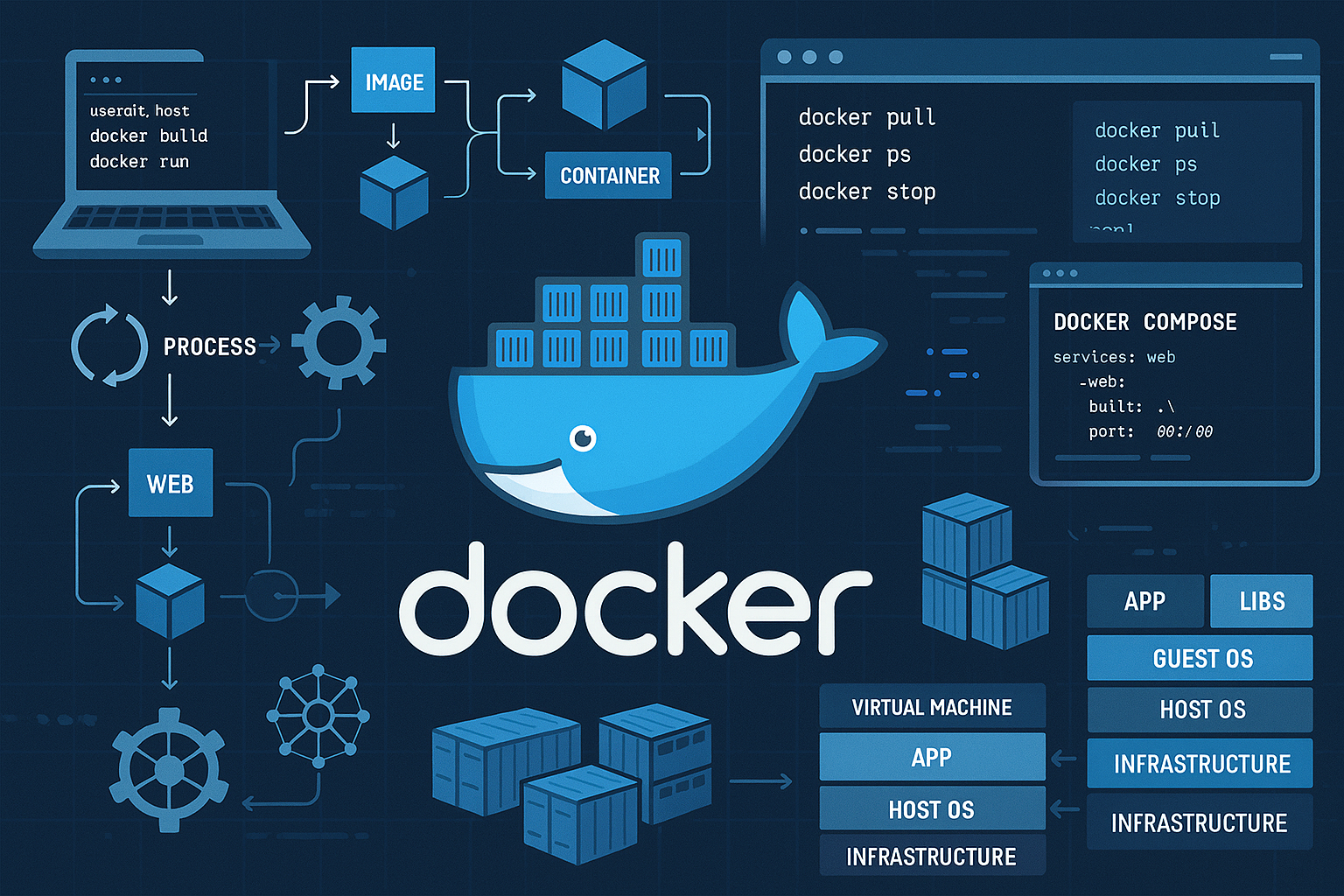
Docker vs Virtual Machines: The Real Difference
Virtual machines are like renting entire apartments for each application – each VM needs its own operating system, taking up significant resources. Docker containers are like efficient studio apartments that share building utilities (the host OS) while keeping each resident (application) completely separate.
Virtual machines run applications inside a guest Operating System powered by the server’s host OS, while containers share the host OS kernel but keep applications isolated.
Installing Docker: Step-by-Step for Every System
Windows Installation 💻
- Check System Requirements:
- Windows 10 64-bit Pro, Enterprise, or Education
- Hyper-V and WSL 2 enabled
- At least 4GB RAM
- Download and Install:
- Visit docker.com and download Docker Desktop
- Run the installer and follow prompts
- Restart your computer when prompted
- Verify Installation:
docker --version
docker run hello-world
macOS Installation 🍎
- Download Docker Desktop from the official website
- Drag Docker to Applications folder
- Launch Docker and complete setup
- Verify with terminal:
docker --version
Linux Installation (Ubuntu) 🐧
# Update system packages
sudo apt update

# Install required dependencies
sudo apt install apt-transport-https ca-certificates curl software-properties-common

# Add Docker's official GPG key
curl -fsSL https://download.docker.com/linux/ubuntu/gpg | sudo apt-key add -

# Add Docker repository
sudo add-apt-repository "deb [arch=amd64] https://download.docker.com/linux/ubuntu $(lsb_release -cs) stable"

# Install Docker
sudo apt update
sudo apt install docker-ce

# Start Docker service
sudo systemctl start docker
sudo systemctl enable docker

# Test installation
sudo docker run hello-world
Understanding Docker Architecture: The Big Picture
Docker follows a client-server architecture with three main components:
1. Docker Daemon
The background service that does the heavy lifting – building, running, and managing containers.
2. Docker Client
The command-line interface you use to communicate with the Docker daemon (when you type docker run).
3. Docker Registry
The storage system for Docker images (like Docker Hub – think of it as the “App Store” for containers).
Core Docker Concepts: Images, Containers, and More
Docker Images: The Blueprint 📋
A Docker Image is the packaged output of a Dockerfile, containing the app code and all dependencies. Images are read-only templates used to create containers.
Docker Containers: The Running Instance 🏃♂️
Containers are running instances of images. If an image is like a recipe, a container is the actual dish you cook from that recipe.
Dockerfile: The Recipe 📝
A text file containing instructions for building an image. Think of it as a step-by-step cooking recipe for your application environment.
Docker Hub: The Image Library 📚
Docker Hub is Docker’s official cloud-based registry where developers store, share, and download Docker images.
Your First Docker Commands: Hands-On Practice
1. Pull Your First Image
docker pull nginx
This downloads the official Nginx web server image.
2. Run Your First Container
docker run -d -p 8080:80 nginx
-d: Run in background (detached mode)-p 8080:80: Map host port 8080 to container port 80
Visit http://localhost:8080 to see your running web server!
3. List Running Containers
docker ps
4. Stop a Container
docker stop [container-name-or-id]
5. List All Images
docker images
6. Remove Containers and Images
docker rm [container-name]    # Remove stopped container
docker rmi [image-name]       # Remove image
Essential Docker Commands Cheat Sheet 📋
This Docker cheat sheet includes a quick reference to all the important CLI commands you need when using Docker:
Image Management
docker build -t myapp .              # Build image from Dockerfile
docker pull ubuntu:latest           # Pull image from registry
docker push myrepo/myapp            # Push image to registry
docker images                       # List all images
docker rmi image-id                 # Remove image
docker image prune                  # Remove unused images
Container Management
docker run -it ubuntu bash         # Run interactive container
docker run -d nginx                # Run container in background
docker ps                         # List running containers
docker ps -a                      # List all containers
docker stop container-name        # Stop container
docker start container-name       # Start stopped container
docker restart container-name     # Restart container
docker rm container-name          # Remove container
docker logs container-name        # View container logs
docker exec -it container bash    # Execute command in running container
System Management
docker system info                # Show Docker system info
docker system prune              # Remove unused data
docker stats                     # Show container resource usage
docker version                   # Show Docker version
Creating Your First Dockerfile
Let’s build a simple web application container:
# Use official Python runtime as base image
FROM python:3.9-slim

# Set working directory in container
WORKDIR /app

# Copy requirements file
COPY requirements.txt .

# Install dependencies
RUN pip install --no-cache-dir -r requirements.txt

# Copy application code
COPY . .

# Expose port 5000
EXPOSE 5000

# Define command to run application
CMD ["python", "app.py"]
Build and Run Your Custom Image
# Build the image
docker build -t my-python-app .

# Run the container
docker run -p 5000:5000 my-python-app
Docker Best Practices for 2025 🚀
Docker security and best practices focus on using secure base images, avoiding root users, and keeping images updated:
Security Best Practices
- Use Official Base Images: Docker Official Images are a curated collection that have clear documentation, promote best practices, and are regularly updated
- Don’t Run as Root: 58% of images run the container entrypoint as root, but it’s a best practice to avoid this by including the USER instruction
- Use Multi-Stage Builds: Separate build-time and runtime dependencies
- Scan for Vulnerabilities: Use tools like
docker scoutto check for security issues
Performance Optimization
- Use .dockerignore: Prevent unnecessary files from being added to build context
- Minimize Layers: Combine RUN instructions where possible
- Use Specific Tags: Pin images to specific versions or digests for consistency
- Clean Up After Installs: Remove package caches and temporary files
Example Optimized Dockerfile
FROM node:18-alpine

# Create non-root user
RUN addgroup -g 1001 -S nodejs
RUN adduser -S nextjs -u 1001

WORKDIR /app

# Copy package files first (better caching)
COPY package*.json ./
RUN npm ci --only=production && npm cache clean --force

# Copy application code
COPY --chown=nextjs:nodejs . .

# Switch to non-root user
USER nextjs

EXPOSE 3000

CMD ["npm", "start"]
Docker Compose: Managing Multiple Containers
For complex applications requiring multiple services (database, web server, cache), Docker Compose simplifies management:
version: '3.8'

services:
  web:
    build: .
    ports:
      - "5000:5000"
    depends_on:
      - db
      - redis
    environment:
      - DATABASE_URL=postgresql://user:password@db:5432/myapp

  db:
    image: postgres:13
    environment:
      POSTGRES_DB: myapp
      POSTGRES_USER: user
      POSTGRES_PASSWORD: password
    volumes:
      - postgres_data:/var/lib/postgresql/data

  redis:
    image: redis:6-alpine

volumes:
  postgres_data:
Compose Commands
docker-compose up -d        # Start all services
docker-compose down         # Stop and remove all services
docker-compose logs web     # View logs for specific service
docker-compose exec web bash # Execute command in service
Real-World Docker Use Cases in 2025
Docker is utilized across various sectors including finance for microservices, manufacturing for IoT edge computing, retail for inventory management, and energy for monitoring systems:
1. Microservices Architecture
Perfect for breaking down monolithic applications into smaller, manageable services. Each microservice runs in its own container, allowing independent deployment and scaling.
2. CI/CD Pipelines
Docker accelerates the software development lifecycle by providing consistent environments from development to production.
3. Development Environment Standardization
No more “works on my machine” problems. Every developer gets identical environments.
4. Cloud Migration
Containers make it easy to move applications between different cloud providers or from on-premises to cloud.
5. Legacy Application Modernization
Wrap legacy applications in containers without major code rewrites.
Troubleshooting Common Docker Issues 🔧
The best way to troubleshoot Docker is by checking logs and understanding error messages:
Container Won’t Start
# Check container logs
docker logs container-name

# Inspect container configuration
docker inspect container-name

# Run container interactively to debug
docker run -it image-name /bin/bash
Port Already in Use
# Check what's using the port
netstat -tulpn | grep :8080

# Use different port mapping
docker run -p 8081:80 nginx
Out of Disk Space
# Clean up unused containers, networks, and images
docker system prune -a

# Remove specific unused volumes
docker volume prune
Permission Issues
# On Linux, add user to docker group
sudo usermod -aG docker $USER

# Restart terminal or logout/login
Docker Networking Essentials
Bridge Network (Default)
Containers can communicate with each other using container names as hostnames.
Custom Networks
# Create custom network
docker network create myapp-network

# Run containers on custom network
docker run --network myapp-network --name web nginx
docker run --network myapp-network --name db postgres
Port Mapping
# Map container port to host
docker run -p 3000:3000 node-app    # host:container
docker run -P node-app               # Map all exposed ports
Docker Volumes: Data Persistence
Containers are ephemeral – data disappears when containers are removed. Volumes solve this:
Named Volumes
# Create named volume
docker volume create myapp-data

# Use volume in container
docker run -v myapp-data:/app/data myapp
Bind Mounts
# Mount host directory to container
docker run -v /host/path:/container/path myapp
Volume Commands
docker volume ls                    # List volumes
docker volume inspect myapp-data   # Inspect volume
docker volume rm myapp-data        # Remove volume
Docker Security in Production 🔒
Docker security requires multiple layers including secure base images, runtime monitoring, and proper access controls:
Image Security
- Scan Images: Use
docker scoutor third-party tools - Use Minimal Base Images: Alpine Linux or distroless images
- Keep Images Updated: Regularly rebuild with latest patches
- Sign Images: Use Docker Content Trust for image verification
Runtime Security
- Run as Non-Root User
- Use Read-Only Filesystems:
docker run --read-only - Limit Resources: Set CPU and memory limits
- Drop Capabilities: Remove unnecessary Linux capabilities
Network Security
- Use Custom Networks: Don’t rely on default bridge
- Implement Network Policies: Control container-to-container communication
- TLS Encryption: Secure communication between services
Performance Optimization Tips
Image Size Optimization
- Multi-Stage Builds: Separate build and runtime environments
- Use .dockerignore: Exclude unnecessary files from build context
- Layer Caching: Order Dockerfile instructions for optimal caching
- Minimize Installed Packages: Only install what’s needed
Runtime Performance
- Resource Limits: Prevent containers from consuming all host resources
- Health Checks: Monitor container health and restart failed containers
- Log Management: Prevent log files from filling up disk space
Monitoring and Logging
Container Monitoring
# Real-time resource usage
docker stats

# Container processes
docker top container-name

# System events
docker events
Centralized Logging
# Configure log driver
docker run --log-driver=syslog myapp

# View logs with timestamps
docker logs -t container-name

# Follow logs in real-time
docker logs -f container-name
Docker in CI/CD Pipelines
Build Stage
# Build and tag image
docker build -t myapp:$BUILD_NUMBER .

# Run tests in container
docker run --rm myapp:$BUILD_NUMBER npm test
Deploy Stage
# Push to registry
docker push myapp:$BUILD_NUMBER

# Deploy to production
docker pull myapp:$BUILD_NUMBER
docker run -d myapp:$BUILD_NUMBER
Advanced Docker Features
Multi-Stage Builds
# Build stage
FROM node:18 AS builder
WORKDIR /app
COPY package*.json ./
RUN npm install
COPY . .
RUN npm run build

# Production stage
FROM nginx:alpine
COPY --from=builder /app/dist /usr/share/nginx/html
EXPOSE 80
CMD ["nginx", "-g", "daemon off;"]
Health Checks
HEALTHCHECK --interval=30s --timeout=3s --start-period=5s --retries=3 \
  CMD curl -f http://localhost:8080/health || exit 1
Secrets Management
# Create secret
echo "mysecretpassword" | docker secret create db_password -

# Use secret in service
docker service create --secret db_password myapp
Next Steps: Beyond the Basics
Ready to dive deeper? Check out these related topics on our blog:
- AWS vs Azure vs Google Cloud: Complete Pricing Comparison 2025 – Learn about container orchestration in the cloud
- Cloud Migration Strategy 2025 – Discover how Docker fits into cloud migration
- Best Free AI Tools for Everyday Users – Explore AI-powered development tools that work great with Docker
Frequently Asked Questions
Q: Is Docker only for web applications? A: Not at all! Docker works for any type of application – databases, machine learning models, desktop applications, and even IoT devices.
Q: Can I run Docker on Windows? A: Yes! Docker Desktop works great on Windows 10/11 with WSL 2 support.
Q: How much does Docker cost? A: Docker itself is free and open-source. Docker Desktop is free for personal use and small businesses.
Q: Is Docker the same as Kubernetes? A: No, they’re complementary. Docker creates containers, while Kubernetes orchestrates (manages) containers at scale.
Q: Can containers replace virtual machines entirely? A: In many cases, yes! Containers are lighter and faster, but VMs still have their place for complete OS isolation.
Conclusion: Your Docker Journey Starts Now! 🎉
Docker has transformed from a developer tool into a cornerstone of modern software development. By mastering containerization, you’re not just learning a technology – you’re adopting a mindset that prioritizes consistency, portability, and efficiency.
Whether you’re developing microservices, setting up CI/CD pipelines, or migrating to the cloud, Docker provides the foundation for reliable, scalable applications.
Remember the key takeaways:
- Containers solve the “works on my machine” problem permanently
- Docker images are portable across any environment
- Best practices focus on security, performance, and maintainability
- The ecosystem extends far beyond just running containers
Start small with simple applications and gradually work your way up to complex multi-container architectures. The investment in learning Docker will pay dividends throughout your development career.
Ready to containerize your first application? Start with the examples in this guide and don’t be afraid to experiment. The Docker community is incredibly welcoming and helpful when you need support.
What’s your next Docker project going to be?
Found this guide helpful? Share it with your fellow developers and let us know in the comments what Docker challenges you’d like us to tackle next!
Related Articles:
- 30-Day Digital Detox Challenge – Optimize your development workflow
- How to Make Your Slow Computer Fast Again – Boost performance for Docker workloads
- Cybersecurity in the Cloud: Threats and Best Practices – Secure your containerized applications